
Connecting Docs
Pixel Era
Version 3.6.0
Read a texture or render target
1. Add the manager
Place Pixel Era Manager in the level. Add a variable of that object-reference type to your Blueprint, make it Instance Editable, and assign the placed manager. The node screenshots call this variable Reader.
- Manager referenceAssign the actor you placed in this level.
2. Prepare the source
For a Texture2D, enable Never Stream and disable Virtual Texture Streaming. Keep your usual compression. A render target needs neither preparation setting.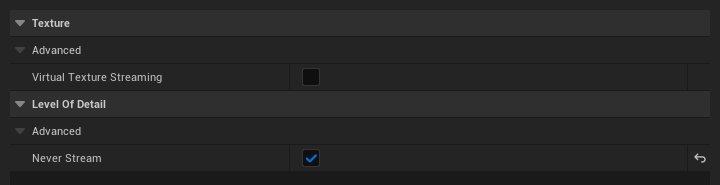
- Virtual Texture Streaming: off
- Never Stream: on
3. Create the request
On BeginPlay, call Read Texture Request. Set Key to PlayerGround, choose your Source, and set UV between 0 and 1. RGBA8 is the default; use RGBA16F for HDR or negative values.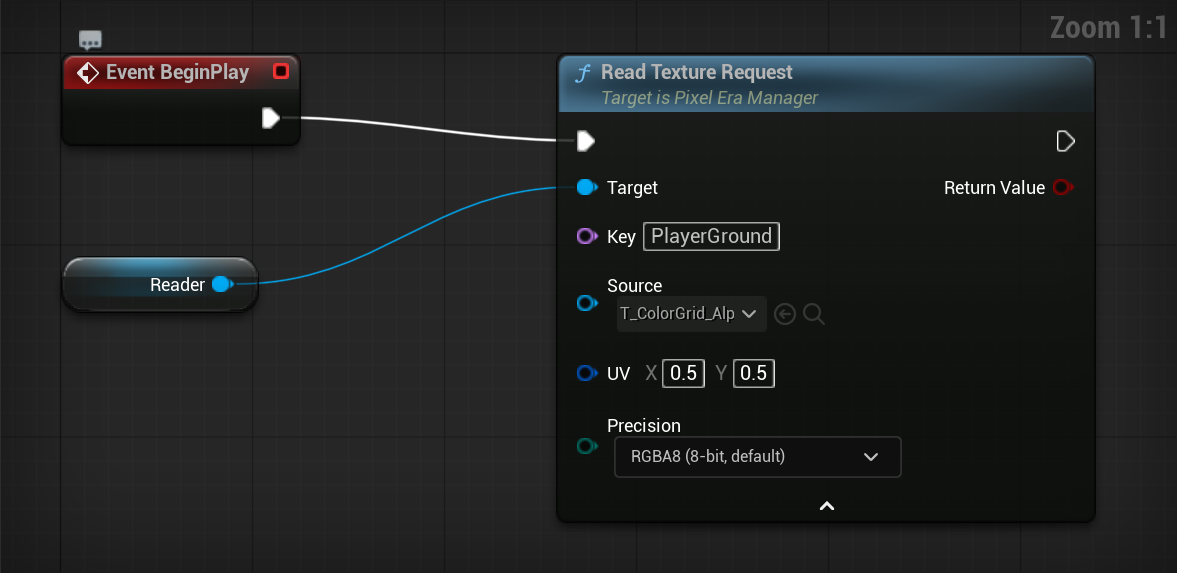
- One key per sampleUse a unique key for every simultaneous sample.
- Choose a UV0.5, 0.5 reads the centre.
4. Use the latest color
On Tick, call Get Pixel Value with the same key and manager. Branch on Available; use Color from the true path.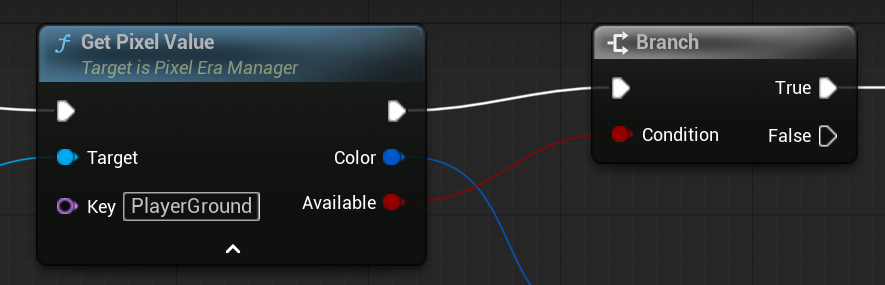
- Wait for AvailableA new request has no completed result yet.
5. Update and remove
Submit the same key when the UV changes. The registered source keeps refreshing. Call Remove Sample when finished, including EndPlay. Each simultaneous sample needs its own key.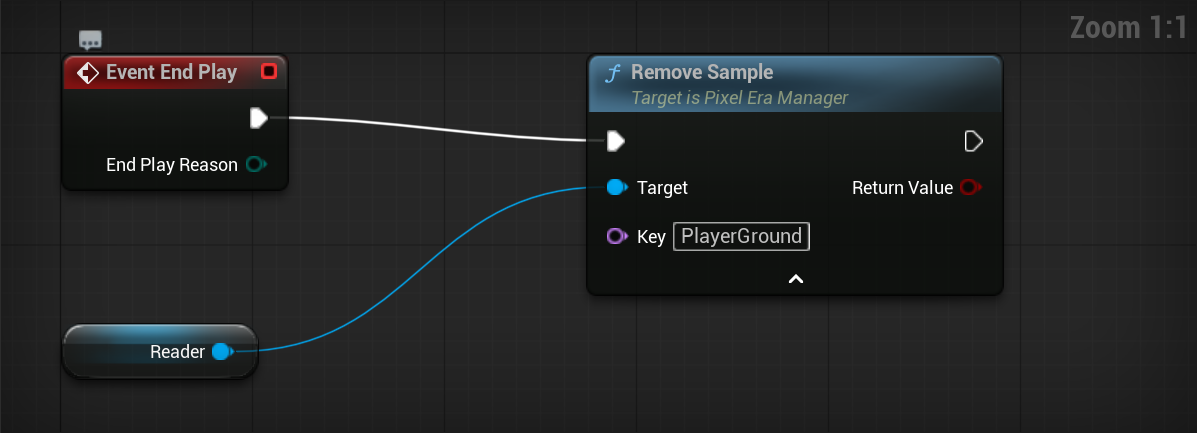
- Remove the same keyCall this when finished, including EndPlay.
Read a material
1. Prepare the material
Open a Surface material. Add Pixel Era: Sample Output and connect the color you want to RGB. Connect Alpha if needed; otherwise it returns 1. Apply the material and let it compile.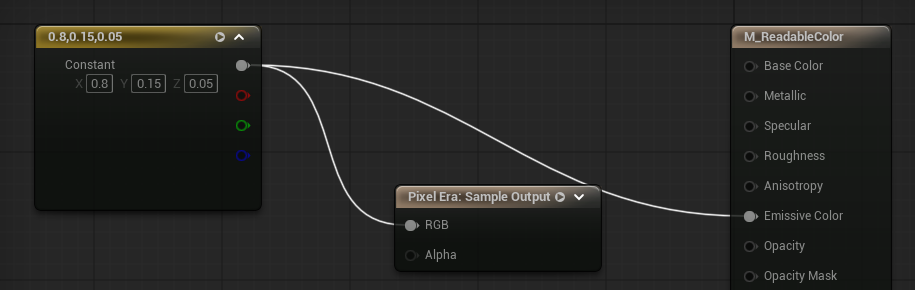
- Connect the color to RGBAlpha is optional; leaving it empty returns 1.
2. Request the color
Place Pixel Era Manager and keep its reference, as in Read a texture. Call Request Material Read with Key = MaterialProbe, your material or material instance, UV, and Precision.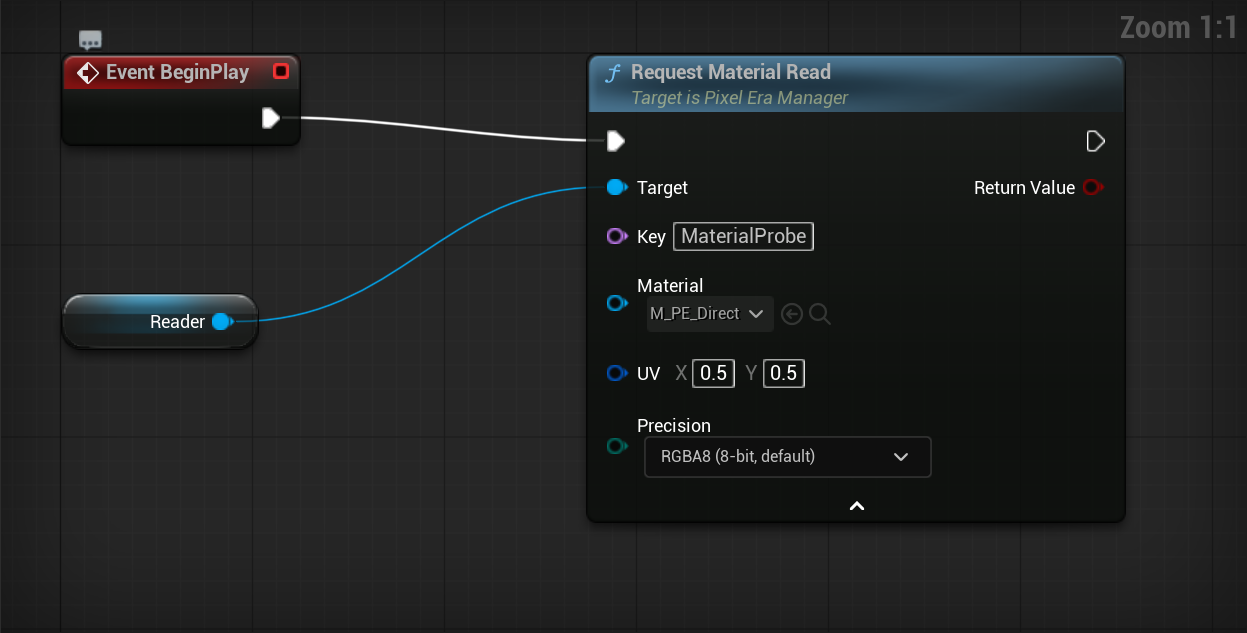
- Material or instanceUse the prepared material or one of its instances.
3. Use the result
Call Get Pixel Value with MaterialProbe and the same manager. Use Color when Available is true. Update the request when UV changes. Remove MaterialProbe when finished, as in Read a texture.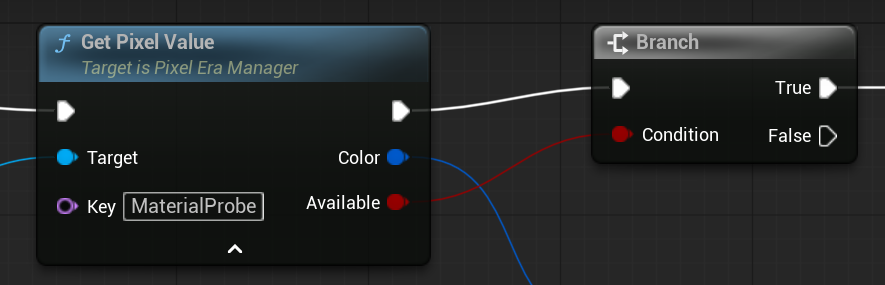
- Check AvailableUse Color on the true path.
Map your world
1. Place the area
Add Pixel Era Play Area. Choose XY or YZ and Field Size / cm. Move the plane to your minimum depth, then click New Asset.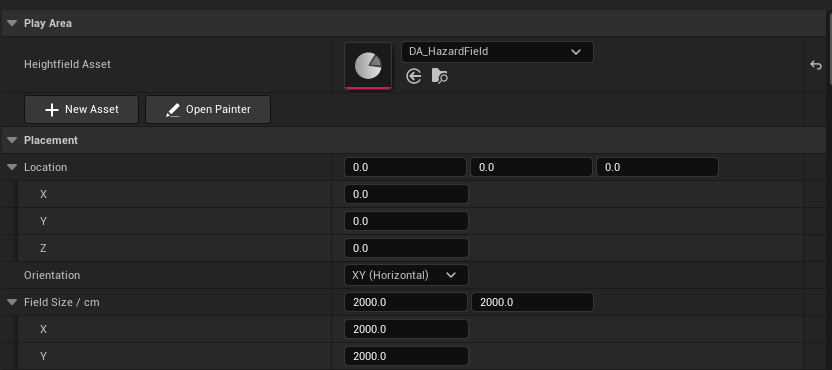
- Create the assetNew Asset creates and assigns the field asset.
- Choose XY or YZField Size sets the footprint in centimetres.
2. Choose the source
Open the Heightfield Asset and name its row Hazard. Choose Texture and assign Map, or Render Target and assign its input. For painted volumes without a color map, choose Heightfield Only. Prepare Texture2D sources as shown in Read a texture.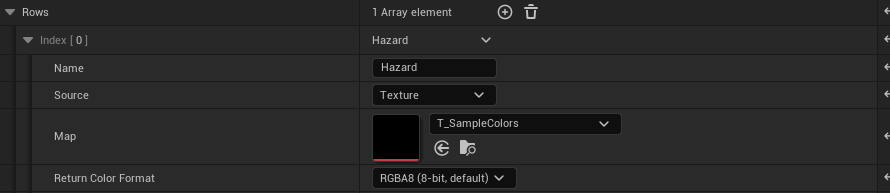
- Choose the sourceAssign the matching texture or render target input below.
3. Set depth limits if needed
For textures or render targets, Depth Routing links color channels to heightfield channels. Leave None for a flat map. Capture or paint any depth channel you use. Heightfield Only returns 1 inside enabled intervals, 0 outside.
- Choose a depth channelSeveral source channels can share the same painted depth. None leaves that channel ungated.
4. Add the receiver
Add PixelEra_WorldMapper to your actor. It finds the Play Areas automatically. Use World Offset to move the sampling point.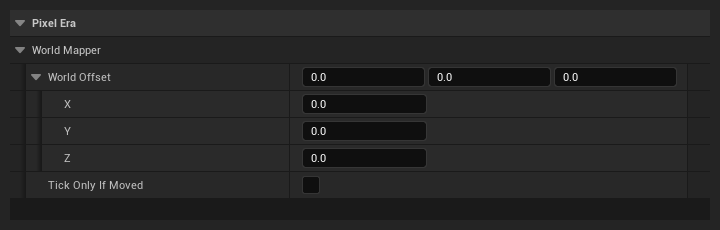
- Sampling offsetRelative to the actor location.
- Tick Only If MovedEnable for static fields. Leave off to react to animated fields while stationary.
5. Handle horizontal results
Select WorldMapper. Under Events, click + for On XY Pixel Color Updated. Connect Row to Switch on Name, add Hazard, and use Color.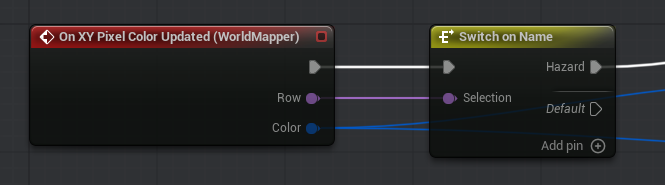
- Horizontal eventAdd Hazard to Switch on Name.
For vertical areas
Use On YZ Pixel Color Updated instead.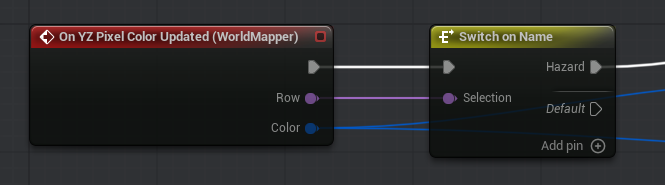
- Vertical eventUse the YZ event for vertical areas.
Capture or paint depth
1. Choose the depth channels
For a standalone field, set the row to Heightfield Only and enable the channels you need. For a texture or render target, keep that source and route its color channels to the depth channel you will paint.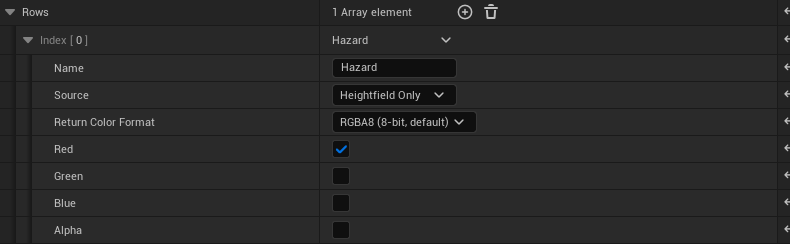
- Enable the channels you needEnabled channels return 1 inside and 0 outside their painted interval.
2. Capture the scene
Select the Play Area. Under Scene Capture, choose Target Row and Write Channel. Hide unwanted meshes in the World Outliner. Click Capture Scene, wait for processing, then Save Field. No special mesh materials are needed.
- Choose the destinationTarget Row is zero-based. Write Channel selects R, G, B or A.
- Capture, then saveHide unwanted geometry in the Outliner first.
3. Paint or adjust it
Click Open Painter. Select the row and channel. Choose Set, Raise, Lower, Erase, or Smooth. Adjust Radius and Falloff, then drag over the plane. Save when finished.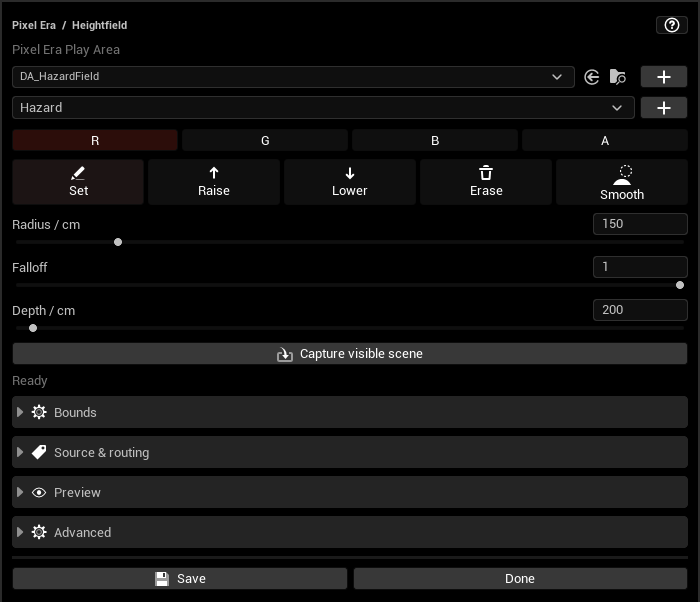
- Channel and brushChoose R/G/B/A, then Set, Raise, Lower, Erase or Smooth.
- Brush size and falloffAdjust these before dragging across the plane.
4. Choose height storage
Select Height Storage in the asset: 8-, 16-, or 32-bit. Return Color Format separately selects RGBA8 or RGBA16F.
- Stored depth precision
5. Set runtime resolution
Choose Runtime Resolution and save. Your original capture stays editable at its authoring resolution.
- Runtime sizeLower this without losing the original authoring data.
Add overlap events
1. Name the source
Create a Pixel Era Overlap Emulator asset. Add Fire and note its Source Index. Choose a preview mesh and material.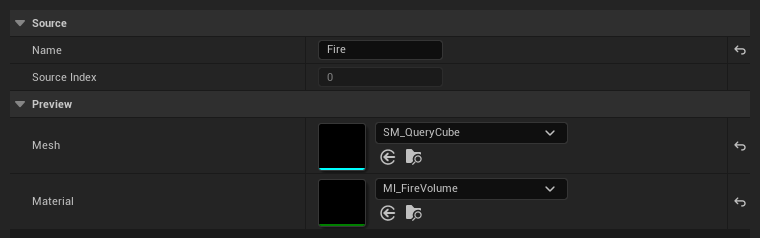
- Name the effectThis is the name received by Blueprint events.
- Remember the source indexUse the same index in its material instance.
2. Prepare the material
Add Pixel Era: Overlap Source. Connect its WPO output to World Position Offset, even without animation.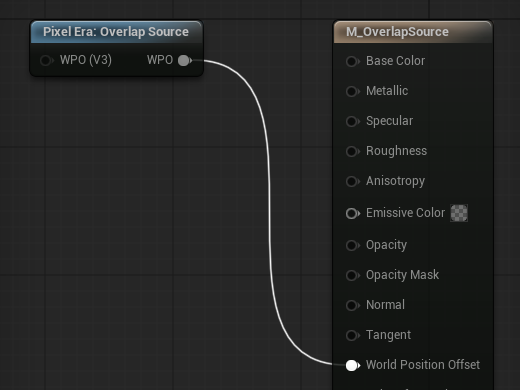
- Connect WPOKeep this connection even for a static source.
3. Match the source
In the material instance, set PESourceIndex to Fire’s index. Set PixelEraCollisionEnabled to 1. Assign the material to your mesh.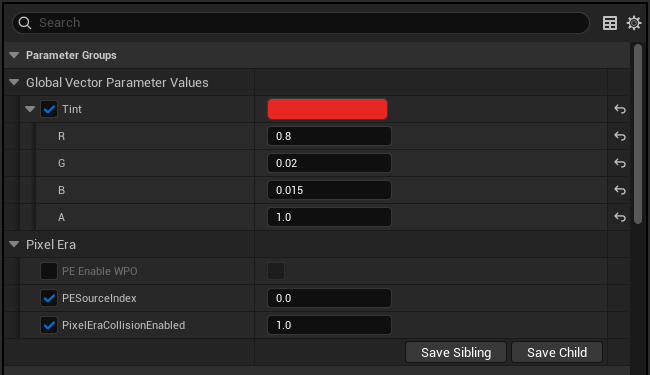
- Match Source IndexUse Fire’s source index, 0 in this example.
- Participation: 1Keep PixelEraCollisionEnabled at 1.
4. Prepare the mesh
Enable Allow CPU Access on the Static Mesh and disable Nanite. Use a closed mesh for inside-volume detection. Engine collision may be disabled.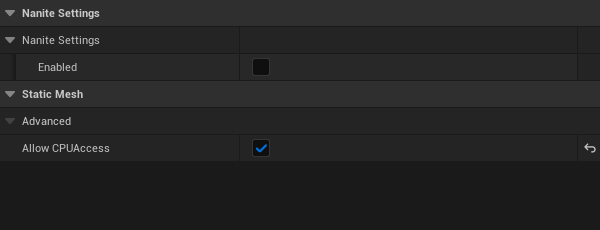
- Nanite: off
- Allow CPU Access: on
5. Place the manager
Add one Pixel Era Overlap Manager and assign your Overlap Emulator asset. Place your prepared source mesh.
- Assign your Overlap Emulator
6. Add the receiver
Add Pixel Era Overlapper to your actor. Adjust Radius, Height, and relative location.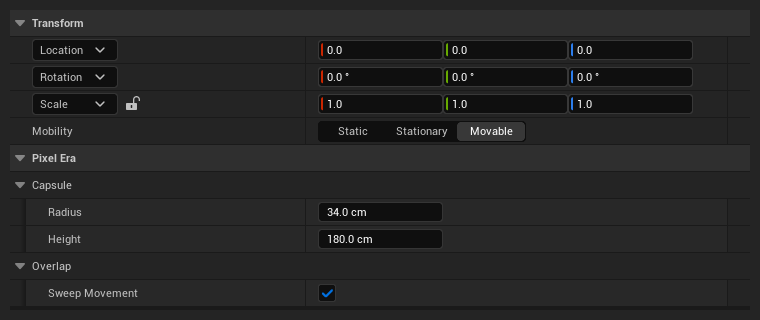
- Capsule dimensionsHeight is the full height, including both caps.
- Sweep MovementEnabled by default. Disable before teleporting, then re-enable after the move.
7. React to Fire
Select Overlapper in the Blueprint. Under Events, click + for On Begin Overlap. Loop through Source Names, then use Switch on Name → Fire.
- Begin OverlapLoop through the names to trigger each effect.
End the response
Use On End Overlap the same way.
- End OverlapUse the matching source names to stop their response.
GPU-only reads: Materials
1. Create the shared key
Create a Pixel Era GPU Ledger data asset. Enter SharedColor in New Key and click AddKey. Leave Slots Per Key at 1 and save.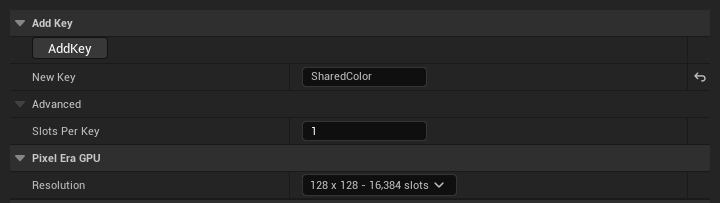
2. Write the color
In Blueprint, call Pixel Era: Read Global with Source, UV, Ledger, and Request Key. Call again whenever it needs updating. This GPU-only path needs no Pixel Era Manager actor.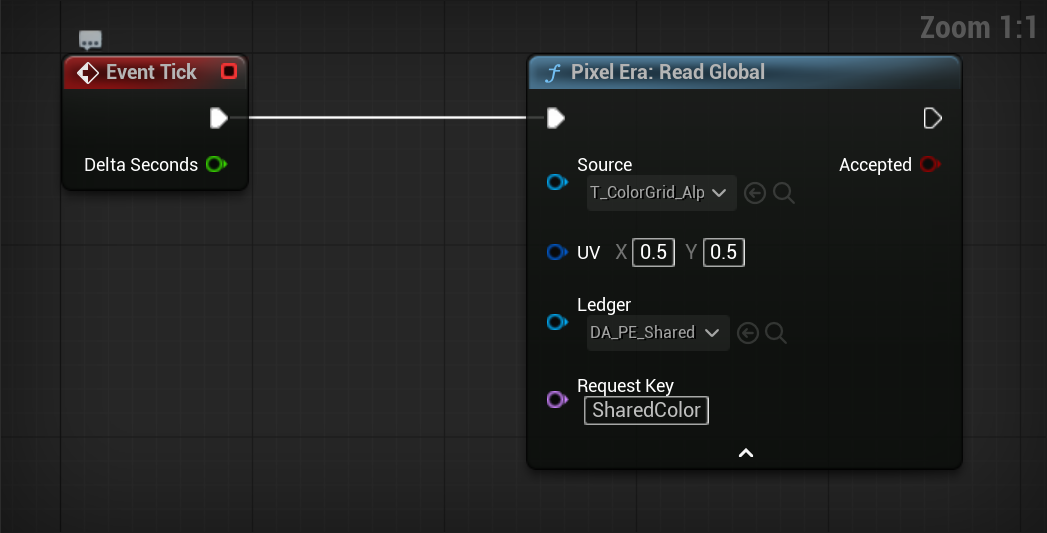
3. Select the shared value
Add Pixel Era: Receive in your material. In its Details, select the same Ledger and Request Key.
4. Use the output
Leave Key Offset disconnected for this single value. Connect RGB, Alpha, or RGBA to the effect you want to control.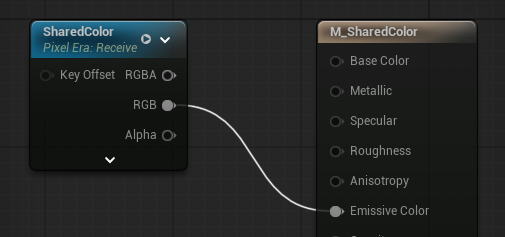
Only need a local read?
Use Pixel Era: Read Local with a Texture Object and UV. Its RGBA output needs no ledger or publishing step.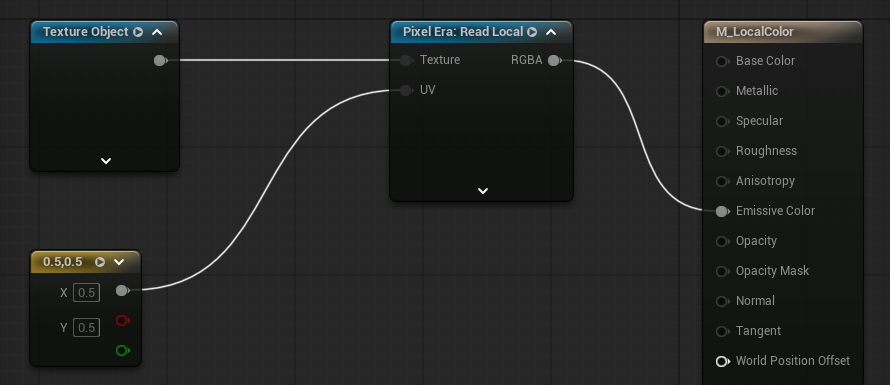
GPU-only reads: Niagara
1. Set up the parameter
Create a one-slot ledger key using Share a color on the GPU. Set your emitter to GPU Compute Sim and spawn one particle. Add a user parameter of type Pixel Era GPU Ledger. Assign its Ledger, Request Key, and Source Texture.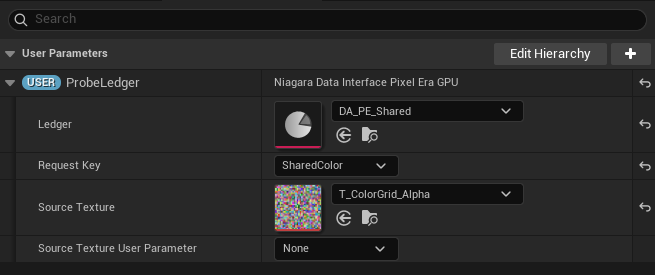
- Assign the ledgerUse the asset containing SharedColor.
- Choose the sourceRequired for Read Global; not required for Receive.
2. Read and use the color
Add Pixel Era: Read Global in Particle Update. Bind GPU Ledger to your user parameter, set UV, and keep Key Offset at 0. Add a later Set Particles.Color module and bind its color to Read Global’s Output Color.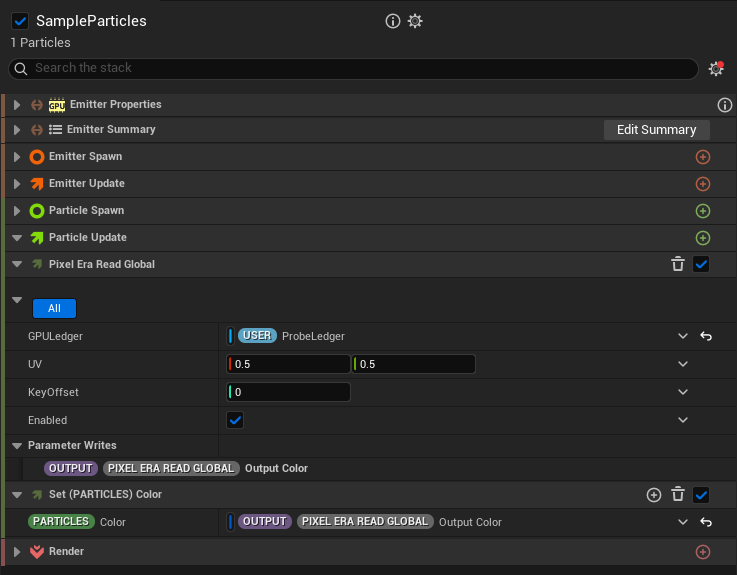
- Bind the user parameterProbeLedger is this example’s user parameter.
- Use Output ColorBind it to Particles.Color or another compatible input.
Receive an existing key
Use Pixel Era: Receive instead, bound to the ledger parameter. Its Output Color works the same way.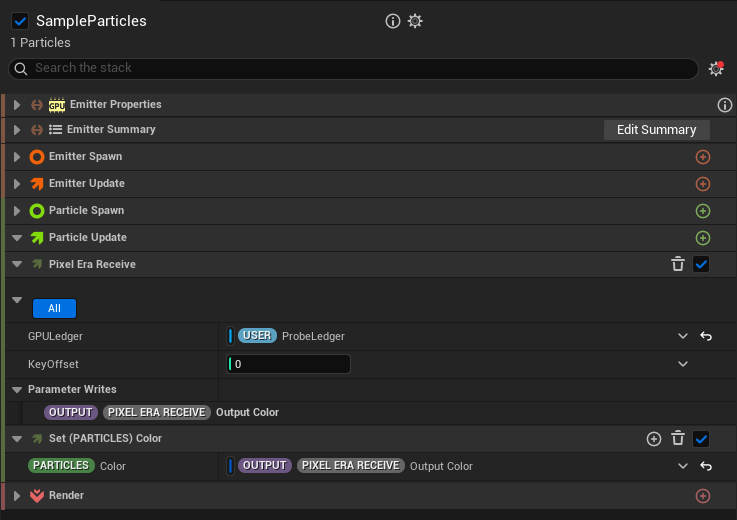
- Receive the shared valueBind Output Color in the same way.
Read colors in C++
1. Add and configure the example
Copy the complete header and source below into your game module, then build. Place Pixel Era Manager and the example actor. Assign its Manager and prepared Source. The actor keeps one sample handle.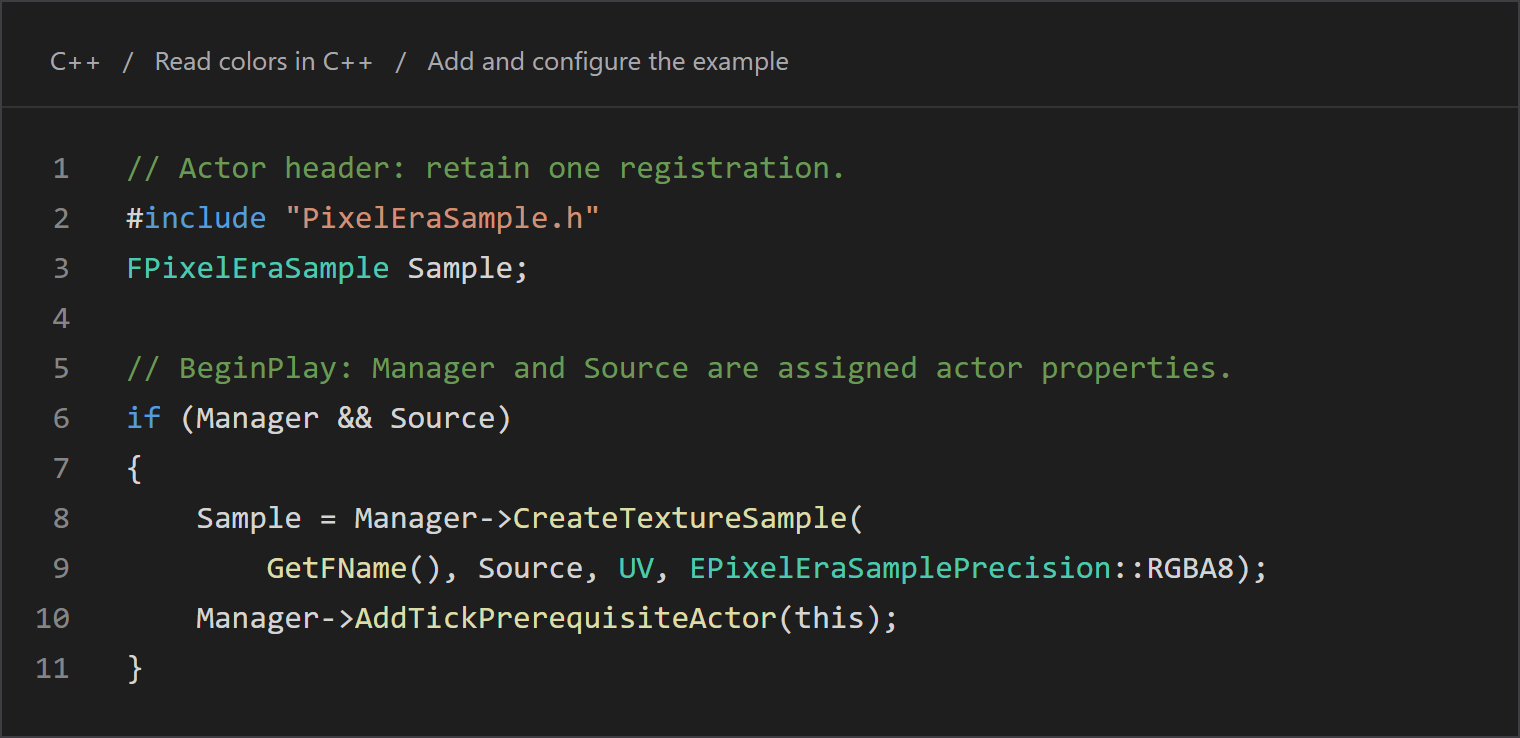
- Register onceRetain the returned sample handle.
Copy the C++
// Actor header: retain one registration.
#include "PixelEraSample.h"
FPixelEraSample Sample;

// BeginPlay: Manager and Source are assigned actor properties.
if (Manager && Source)
{
    Sample = Manager->CreateTextureSample(
        GetFName(), Source, UV, EPixelEraSamplePrecision::RGBA8);
    Manager->AddTickPrerequisiteActor(this);
}
2. Update, receive, remove
Change the actor’s UV. Tick updates the retained handle, then stores the latest completed color in PixelColor. EndPlay removes the registration. Keep these calls on the game thread. Give every sample a key unique within its manager.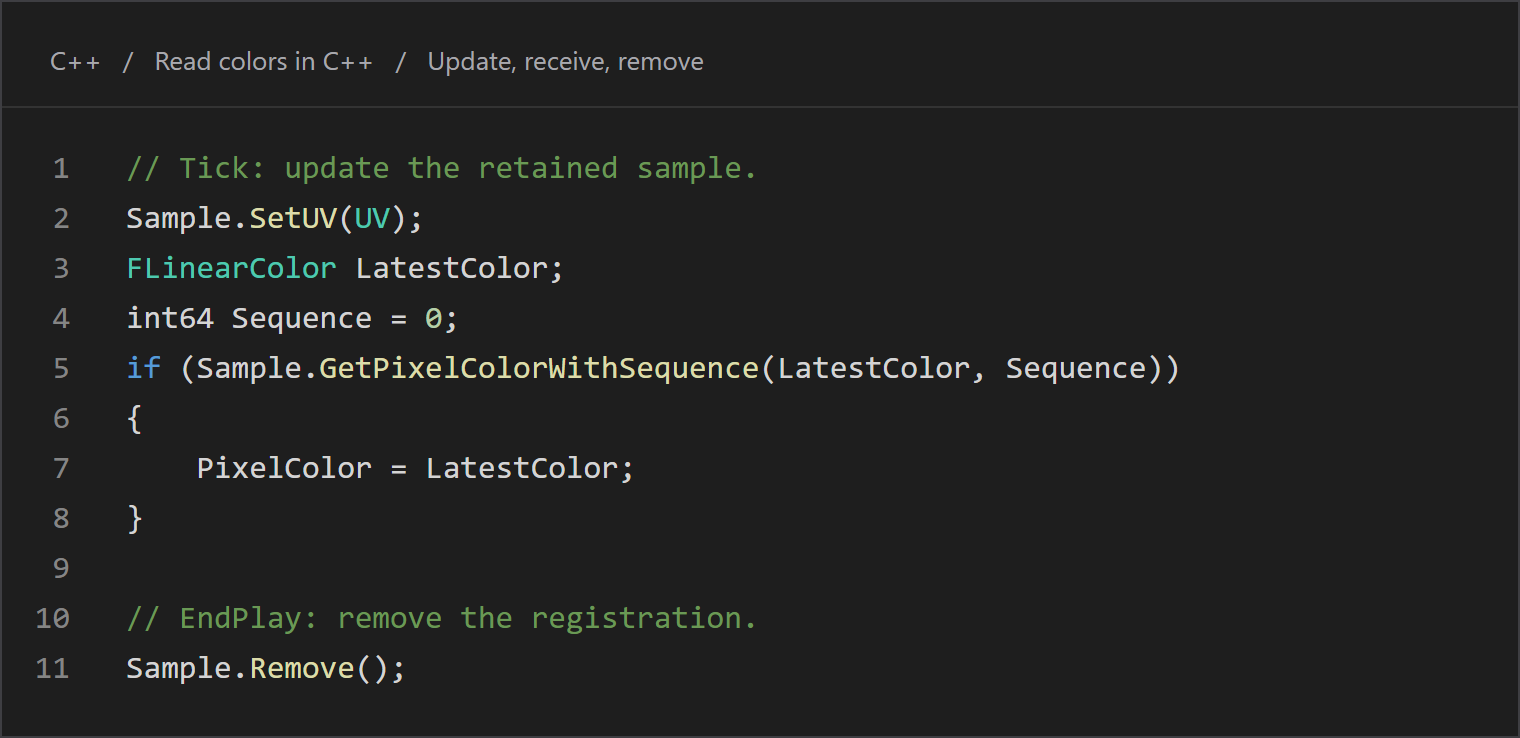
- Update UVThe handle keeps the existing registration.
- Remove on EndPlayIf this read operation will not be used again, and it should not tick anymore – remove the sample from the manager’s cache.
Copy the C++
// Tick: update the retained sample.
Sample.SetUV(UV);
FLinearColor LatestColor;
int64 Sequence = 0;
if (Sample.GetPixelColorWithSequence(LatestColor, Sequence))
{
    PixelColor = LatestColor;
}

// EndPlay: remove the registration.
Sample.Remove();
Add "PixelEra" to PublicDependencyModuleNames in your module’s .Build.cs.
Complete header
PETextureReaderExample.h
#pragma once

#include "CoreMinimal.h"
#include "GameFramework/Actor.h"
#include "PixelEraSample.h"
#include "PETextureReaderExample.generated.h"

class APixelEraCachedReader;
class UTexture;

UCLASS()
class APETextureReaderExample : public AActor
{
    GENERATED_BODY()

public:
    APETextureReaderExample();

    UPROPERTY(EditInstanceOnly, Category = "Pixel Era")
    TObjectPtr<APixelEraCachedReader> Manager;

    UPROPERTY(EditAnywhere, Category = "Pixel Era")
    TObjectPtr<UTexture> Source;

    UPROPERTY(EditAnywhere, BlueprintReadWrite, Category = "Pixel Era")
    FVector2D UV = FVector2D(0.5, 0.5);

    UPROPERTY(BlueprintReadOnly, Category = "Pixel Era")
    FLinearColor PixelColor = FLinearColor::Black;

protected:
    void BeginPlay() override;
    void Tick(float DeltaSeconds) override;
    void EndPlay(const EEndPlayReason::Type Reason) override;

private:
    FPixelEraSample Sample;
};
Complete source
PETextureReaderExample.cpp
#include "PETextureReaderExample.h"
#include "PixelEraCachedReader.h"
#include "Engine/Texture.h"

APETextureReaderExample::APETextureReaderExample()
{
    PrimaryActorTick.bCanEverTick = true;
}

void APETextureReaderExample::BeginPlay()
{
    Super::BeginPlay();
    if (Manager && Source)
    {
        Sample = Manager->CreateTextureSample(
            GetFName(), Source, UV, EPixelEraSamplePrecision::RGBA8);
        Manager->AddTickPrerequisiteActor(this);
    }
}

void APETextureReaderExample::Tick(float DeltaSeconds)
{
    Super::Tick(DeltaSeconds);
    Sample.SetUV(UV);

    FLinearColor LatestColor;
    int64 Sequence = 0;
    if (Sample.GetPixelColorWithSequence(LatestColor, Sequence))
    {
        PixelColor = LatestColor;
    }
}

void APETextureReaderExample::EndPlay(const EEndPlayReason::Type Reason)
{
    Sample.Remove();
    Super::EndPlay(Reason);
}
Use Overlapper in C++
1. Prepare the level
Follow Add overlap events through source and manager setup, naming your source Poison. Copy the complete header and source below into your game module, then build. The actor creates its Pixel Era Overlapper component.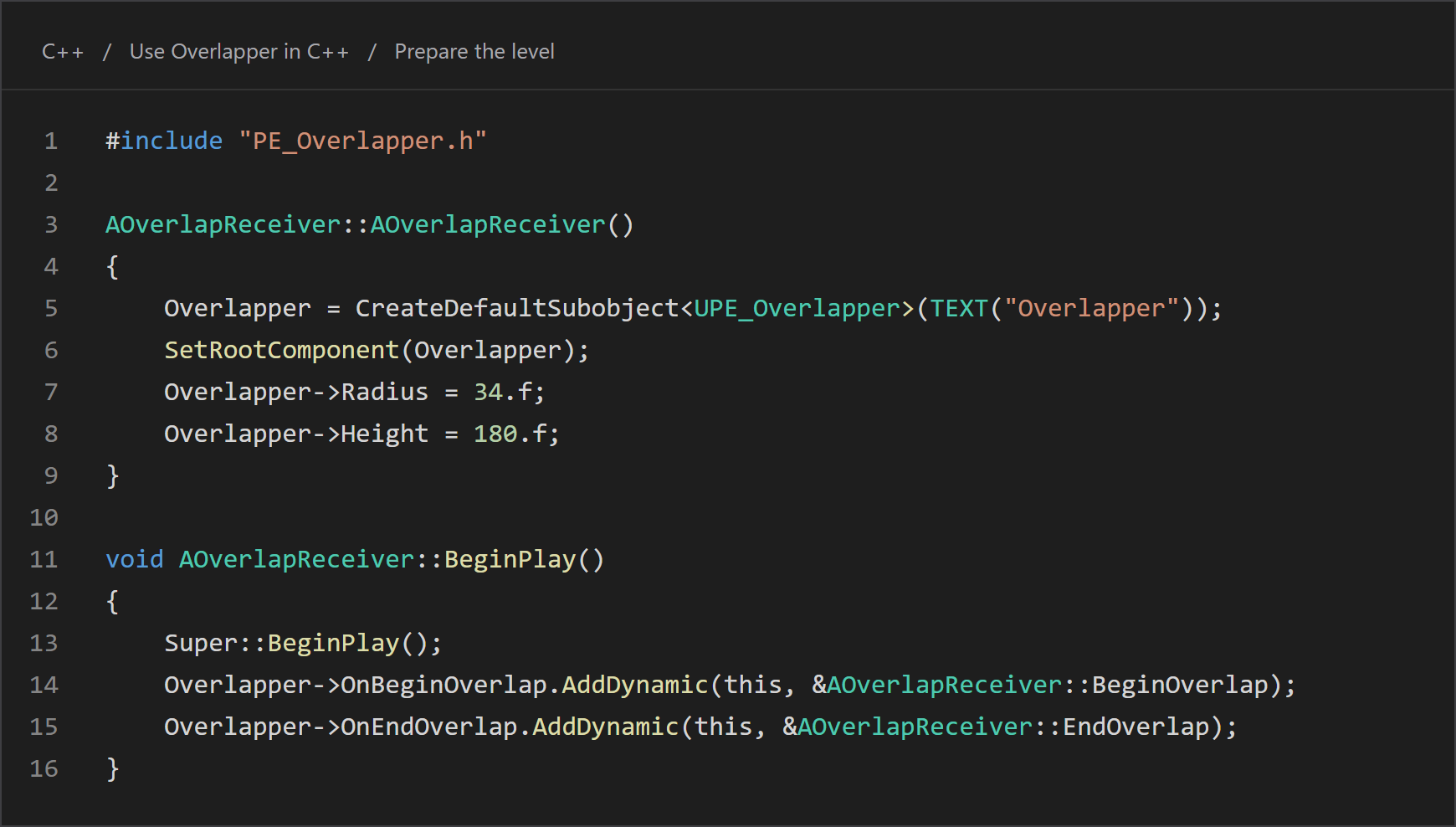
- Create the componentOverlapper performs the query.
- Bind the eventsYour actor supplies the response.
Copy the C++
#include "PE_Overlapper.h"

AOverlapReceiver::AOverlapReceiver()
{
    Overlapper = CreateDefaultSubobject<UPE_Overlapper>(TEXT("Overlapper"));
    SetRootComponent(Overlapper);
    Overlapper->Radius = 34.f;
    Overlapper->Height = 180.f;
}

void AOverlapReceiver::BeginPlay()
{
    Super::BeginPlay();
    Overlapper->OnBeginOverlap.AddDynamic(this, &AOverlapReceiver::BeginOverlap);
    Overlapper->OnEndOverlap.AddDynamic(this, &AOverlapReceiver::EndOverlap);
}
2. Handle Begin and End
Place an OverlapReceiver in the level and move it through the source mesh. bPoisoned becomes true on entry and false on exit. Both handlers receive source-name arrays and useUFUNCTION() for their dynamic bindings.
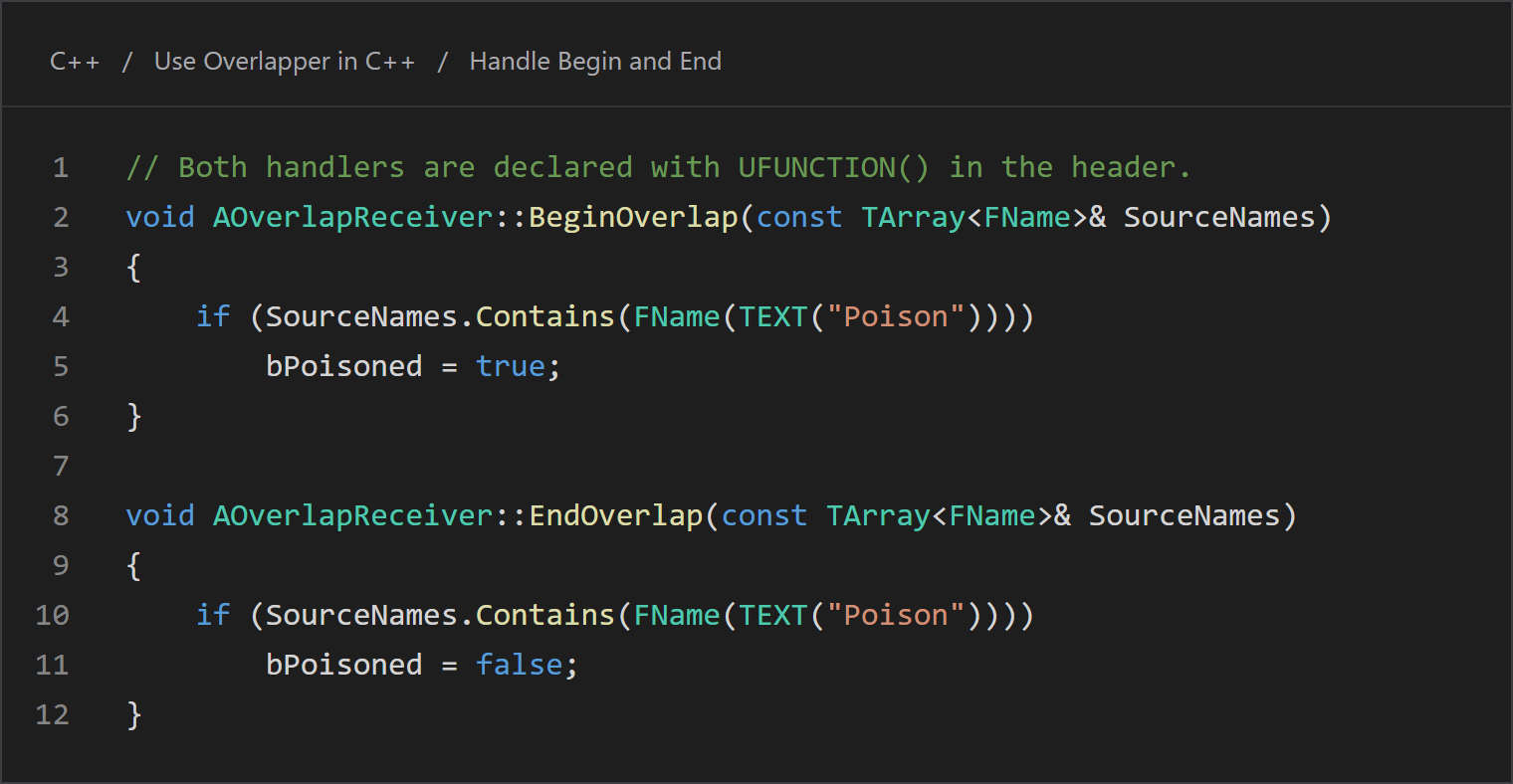
- Begin responsePoison enters the capsule.
- End responsePoison leaves the capsule.
Copy the C++
// Both handlers are declared with UFUNCTION() in the header.
void AOverlapReceiver::BeginOverlap(const TArray<FName>& SourceNames)
{
    if (SourceNames.Contains(FName(TEXT("Poison"))))
        bPoisoned = true;
}

void AOverlapReceiver::EndOverlap(const TArray<FName>& SourceNames)
{
    if (SourceNames.Contains(FName(TEXT("Poison"))))
        bPoisoned = false;
}
Add "PixelEraOverlap" to PublicDependencyModuleNames in your module’s .Build.cs.
Complete header
OverlapReceiver.h
#pragma once

#include "CoreMinimal.h"
#include "GameFramework/Actor.h"
#include "OverlapReceiver.generated.h"

class UPE_Overlapper;

UCLASS()
class AOverlapReceiver : public AActor
{
    GENERATED_BODY()

public:
    AOverlapReceiver();

protected:
    virtual void BeginPlay() override;

    UPROPERTY(VisibleAnywhere, BlueprintReadOnly, Category = "Pixel Era")
    TObjectPtr<UPE_Overlapper> Overlapper;

    UPROPERTY(VisibleAnywhere, BlueprintReadOnly, Category = "Gameplay")
    bool bPoisoned = false;

    UFUNCTION()
    void BeginOverlap(const TArray<FName>& SourceNames);

    UFUNCTION()
    void EndOverlap(const TArray<FName>& SourceNames);
};
Complete source
OverlapReceiver.cpp
#include "OverlapReceiver.h"
#include "PE_Overlapper.h"

AOverlapReceiver::AOverlapReceiver()
{
    Overlapper = CreateDefaultSubobject<UPE_Overlapper>(TEXT("Overlapper"));
    SetRootComponent(Overlapper);
    Overlapper->Radius = 34.f;
    Overlapper->Height = 180.f;
}

void AOverlapReceiver::BeginPlay()
{
    Super::BeginPlay();
    Overlapper->OnBeginOverlap.AddDynamic(this, &AOverlapReceiver::BeginOverlap);
    Overlapper->OnEndOverlap.AddDynamic(this, &AOverlapReceiver::EndOverlap);
}

void AOverlapReceiver::BeginOverlap(const TArray<FName>& SourceNames)
{
    if (SourceNames.Contains(FName(TEXT("Poison"))))
        bPoisoned = true;
}

void AOverlapReceiver::EndOverlap(const TArray<FName>& SourceNames)
{
    if (SourceNames.Contains(FName(TEXT("Poison"))))
        bPoisoned = false;
}