
Add overlap events
Use GPU based overlap events powered by Pixel Era's GPU to CPU readback
1. Name the source
Create a Pixel Era Overlap Emulator asset. Add Fire and note its Source Index. Choose a preview mesh and material.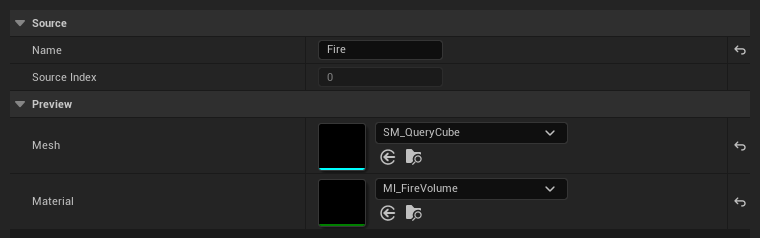
- Name the effectThis is the name received by Blueprint events.
- Remember the source indexUse the same index in its material instance.
2. Prepare the material
Add Pixel Era: Overlap Source. Connect its WPO output to World Position Offset, even without animation.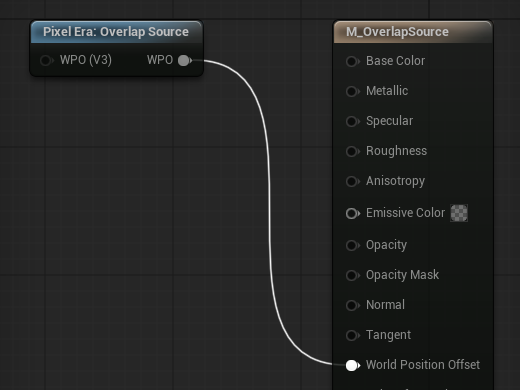
- Connect WPOKeep this connection even for a static source.
3. Match the source
In the material instance, set PESourceIndex to Fire’s index. Set PixelEraCollisionEnabled to 1. Assign the material to your mesh.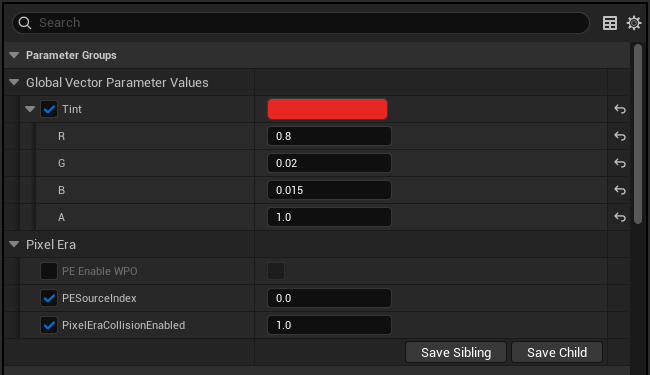
- Match Source IndexUse Fire’s source index, 0 in this example.
- Participation: 1Keep PixelEraCollisionEnabled at 1.
4. Prepare the mesh
Enable Allow CPU Access on the Static Mesh and disable Nanite. Use a closed mesh for inside-volume detection. Engine collision may be disabled.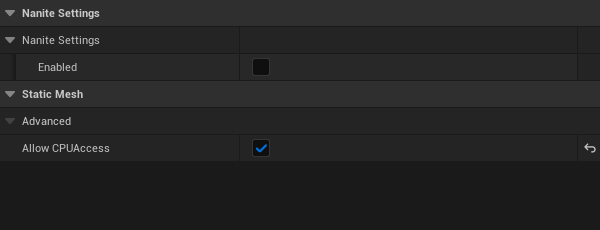
- Nanite: off
- Allow CPU Access: on
5. Place the manager
Add one Pixel Era Overlap Manager and assign your Overlap Emulator asset. Place your prepared source mesh.
- Assign your Overlap Emulator
6. Add the receiver
Add Pixel Era Overlapper to your actor. Adjust Radius, Height, and relative location.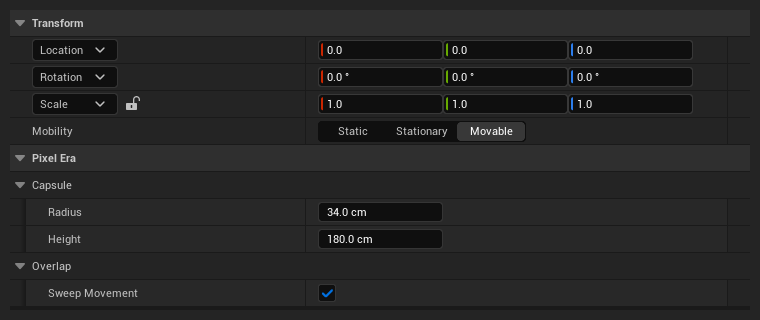
- Capsule dimensionsHeight is the full height, including both caps.
- Sweep MovementEnabled by default. Disable before teleporting, then re-enable after the move.
7. React to Fire
Select Overlapper in the Blueprint. Under Events, click + for On Begin Overlap. Loop through Source Names, then use Switch on Name → Fire.
- Begin OverlapLoop through the names to trigger each effect.
End the response
Use On End Overlap the same way.
- End OverlapUse the matching source names to stop their response.
Updated Oct 17, 2026