
Read a texture or render target
Read a texture pixel and obtain its color for Blueprint gameplay.
1. Add the manager
Place Pixel Era Manager in the level. Add a variable of that object-reference type to your Blueprint, make it Instance Editable, and assign the placed manager. The node screenshots call this variable Reader.
- Manager referenceAssign the actor you placed in this level.
2. Prepare the source
For a Texture2D, enable Never Stream and disable Virtual Texture Streaming. Keep your usual compression. A render target needs neither preparation setting.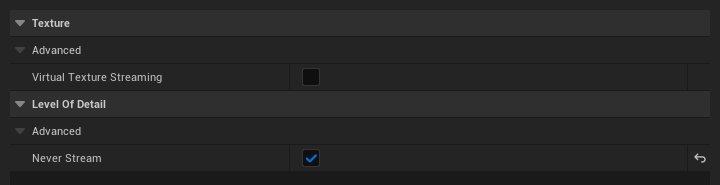
- Virtual Texture Streaming: off
- Never Stream: on
3. Create the request
On BeginPlay, call Read Texture Request. Set Key to PlayerGround, choose your Source, and set UV between 0 and 1. RGBA8 is the default; use RGBA16F for HDR or negative values.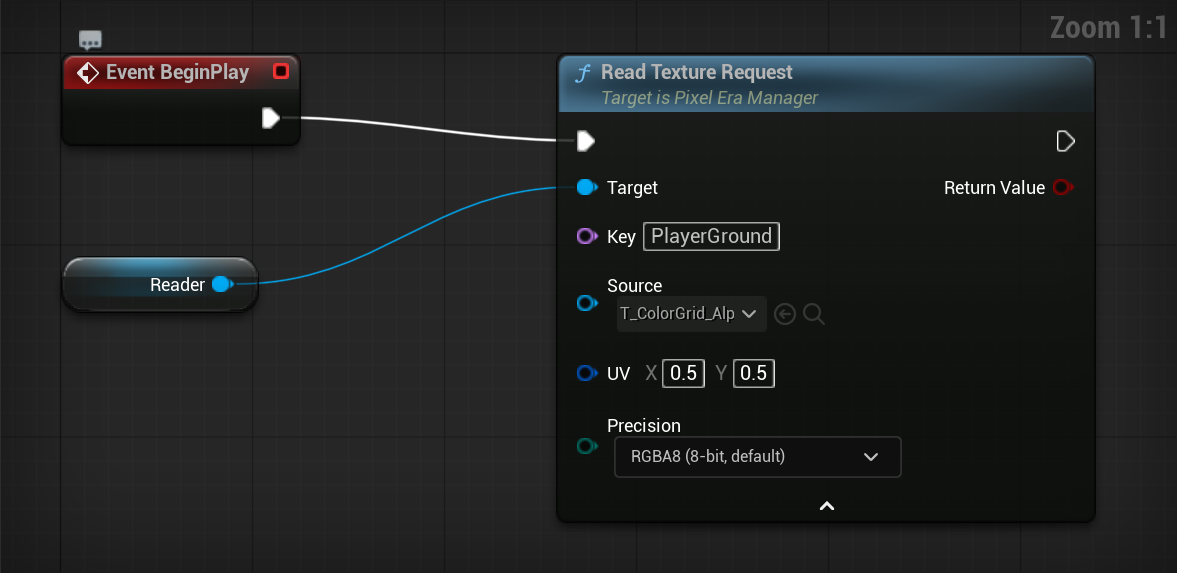
- One key per sampleUse a unique key for every simultaneous sample.
- Choose a UV0.5, 0.5 reads the centre.
4. Use the latest color
On Tick, call Get Pixel Value with the same key and manager. Branch on Available; use Color from the true path.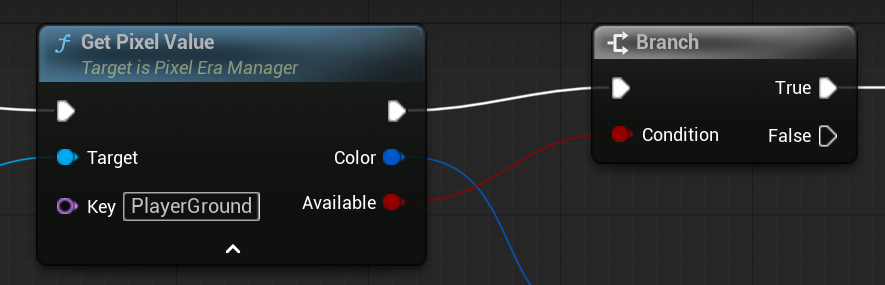
- Wait for AvailableA new request has no completed result yet.
5. Update and remove
Submit the same key when the UV changes. The registered source keeps refreshing. Call Remove Sample when finished, including EndPlay. Each simultaneous sample needs its own key.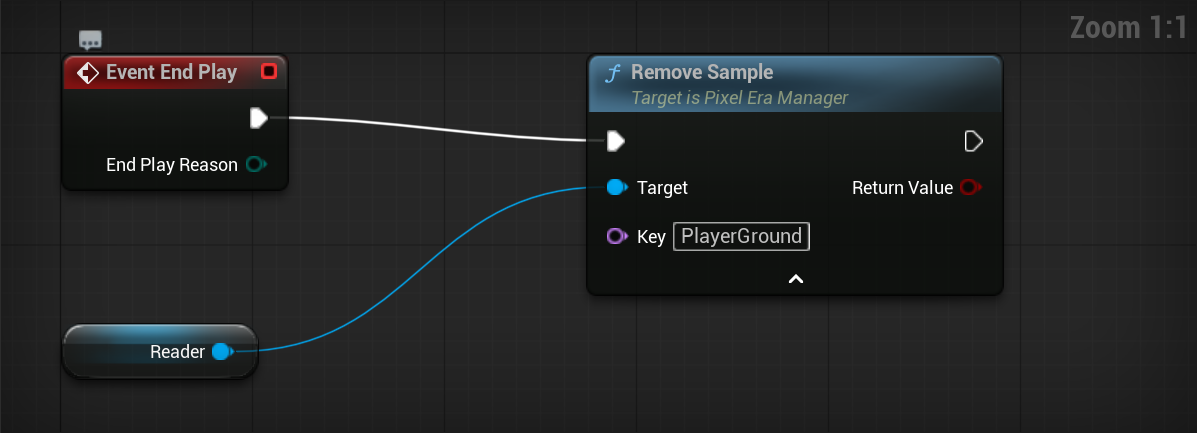
- Remove the same keyCall this when finished, including EndPlay.
Updated Oct 17, 2026