
GPU-only reads: Materials
Perform read request and obtain the results in material graphs without returning it to Blueprint, results can be obtained in Niagara freely as well
1. Create the shared key
Create a Pixel Era GPU Ledger data asset. Enter SharedColor in New Key and click AddKey. Leave Slots Per Key at 1 and save.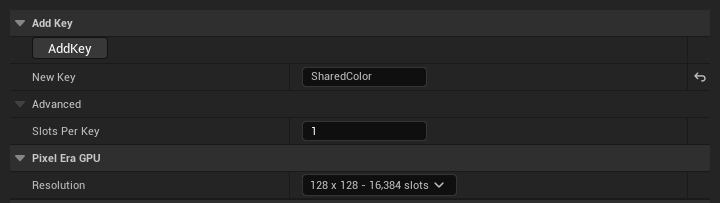
2. Write the color
In Blueprint, call Pixel Era: Read Global with Source, UV, Ledger, and Request Key. Call again whenever it needs updating. This GPU-only path needs no Pixel Era Manager actor.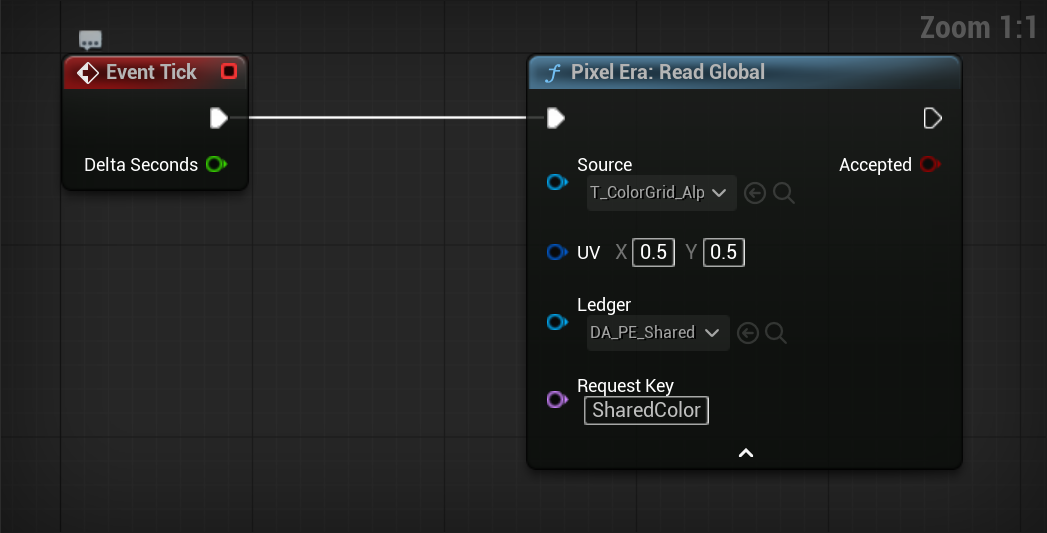
3. Select the shared value
Add Pixel Era: Receive in your material. In its Details, select the same Ledger and Request Key.
4. Use the output
Leave Key Offset disconnected for this single value. Connect RGB, Alpha, or RGBA to the effect you want to control.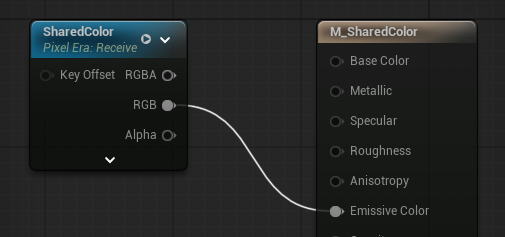
Only need a local read?
Use Pixel Era: Read Local with a Texture Object and UV. Its RGBA output needs no ledger or publishing step.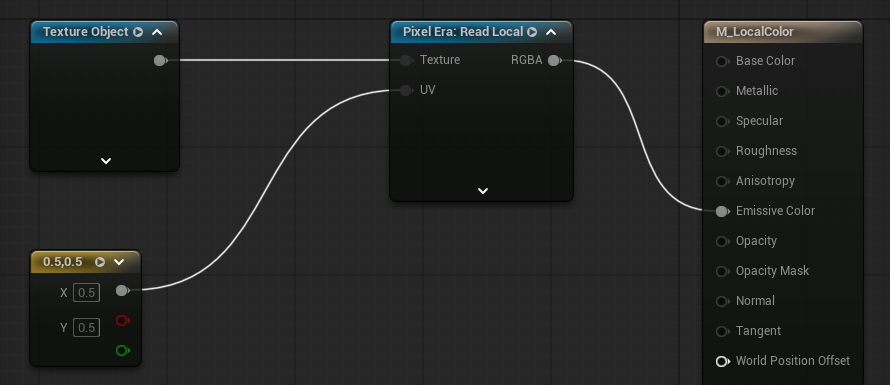
Updated Oct 17, 2026