
Connecting Docs
TUNS
Version 1.1.0
What TUNS does
TUNS: True Uniform Niagara Sampling gives Niagara a true uniform field of sample points with optional baked masking for both Skeletal and Static meshes.
- Bake: choose a mesh and an optional mask texture, then click Bake for TUNS to distribute the samples
- Connect: assign the saved bake to a TUNS Baked Surface (GPU) input in your Niagara module either on Particle Spawn or Particle Update.
- Use: the sampling module writes position, normal, UV and other surface attributes for your effect.
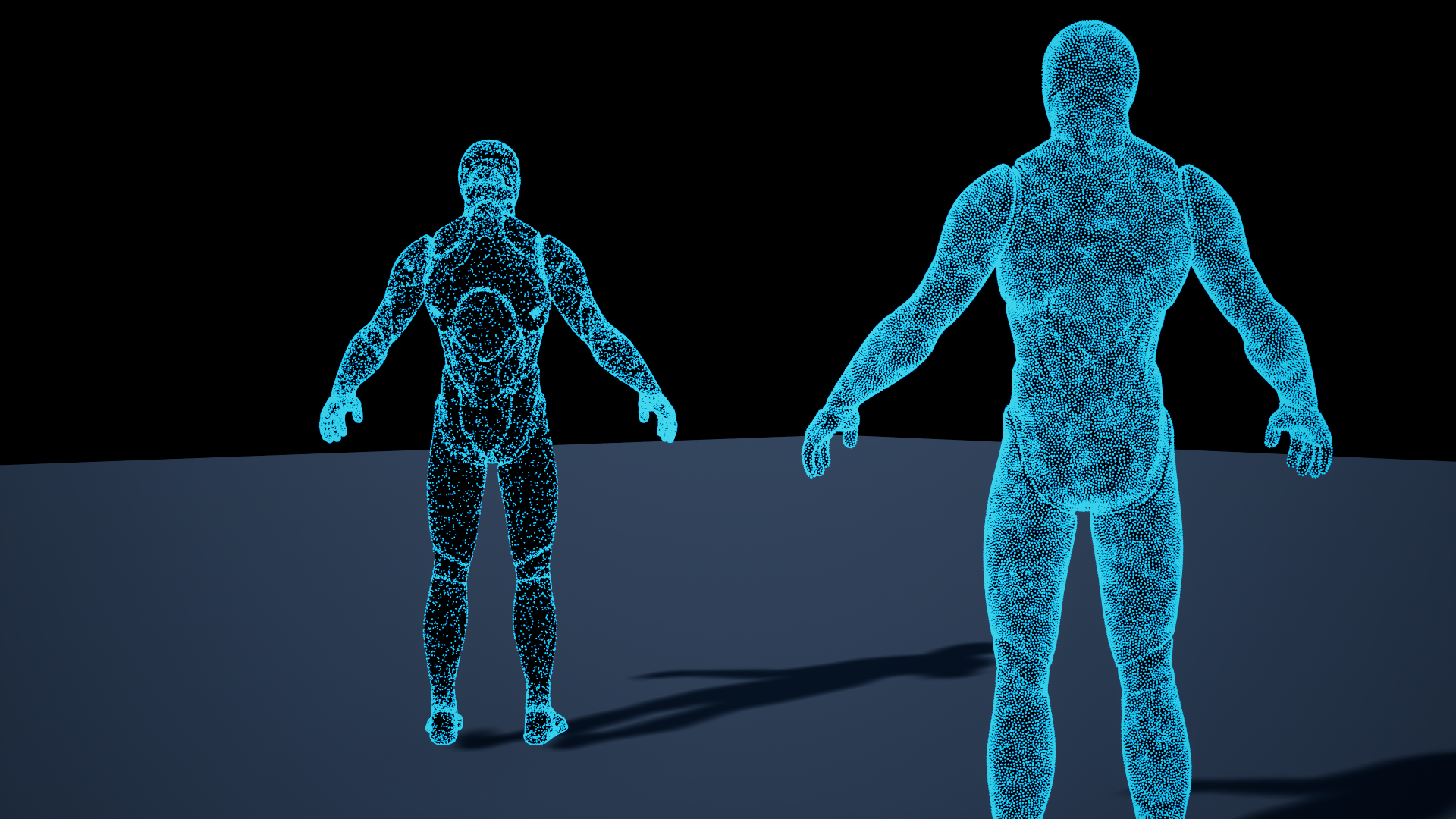
Baking is an editor step. At runtime, Niagara reads the saved bank on the GPU.
Start with your first effect.
Quick setup for Static Meshes
1. Sample & Bake a mesh
- Right-click → Miscellaneous → Data Asset. Choose TUNS Surface Bake. for this example we will name it
DA_TUNS_Sphere. - Open it. Set your preferred Mesh, Leave Mask Texture empty and UV Channel = 0.
- Set Sample Bank Size = 1,024, Relaxation Iterations = 64 and Integration Samples Per Point = 32.
- Click TUNS Bake. Confirm Ready in Status and Sample Count = 1,024. Save.
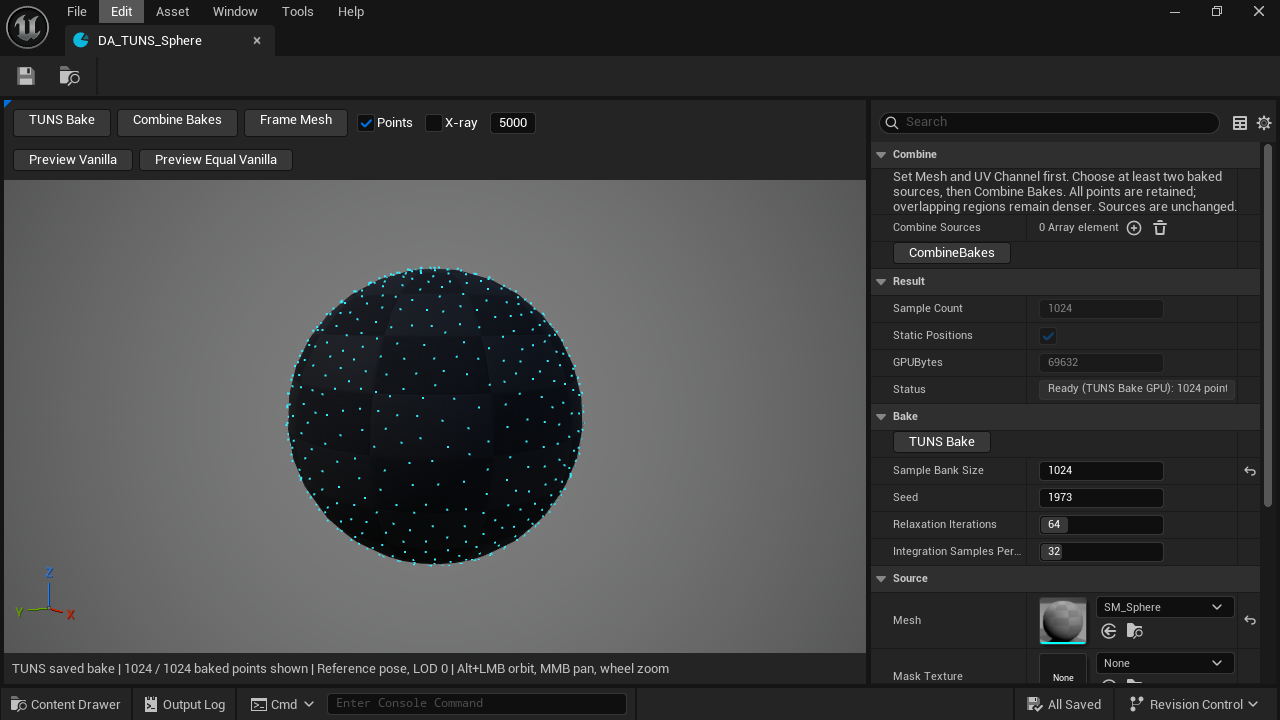
- TUNS BakeBuild and bake down the sample points.
- Preview limitOnly controls the dots drawn in the editor.
- StatusReady means the bake can now be used in Niagara
2. Connect Niagara
- Navigate to Plugin content and duplicate the Niagara System into your project:
Content/Examples/Systems/NS_TUNS_Comparison_SM - Open the duplicate. Disable Before; keep TUNS enabled.
- In User Parameters, expand BakedSurface. Set Surface to
DA_TUNS_Sphere. - Set SampleBudget = 1,024 and Flow = 0. SamplingData is already linked to
User.BakedSurface. - Compile and save. The preview should show dots covering the sphere. Drag the system into your level and test Play.
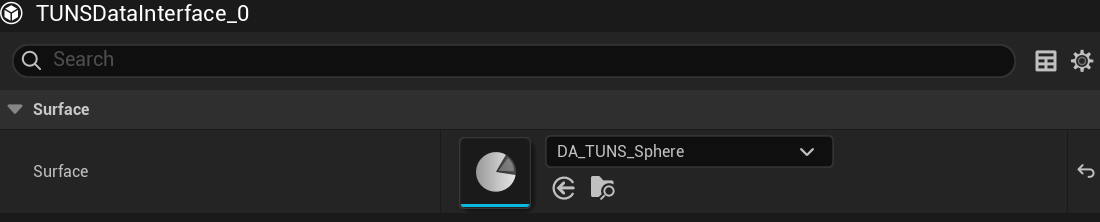
- Surface
Choose the bake, not the source mesh or mask texture.
For a production emitter, follow the static-mesh setup.
Create a surface bake
- Create a TUNS Surface Bake Data Asset in your project.
- Choose the exact Mesh you plan to use. Static and skeletal assets are supported; the baker uses LOD 0.
- Choose a valid UV Channel. Add a Mask Texture if only part of the surface should emit.
- Choose a bank size. Start with 64 relaxation iterations and 32 integration samples per point.
- Click TUNS Bake, inspect the result and save.
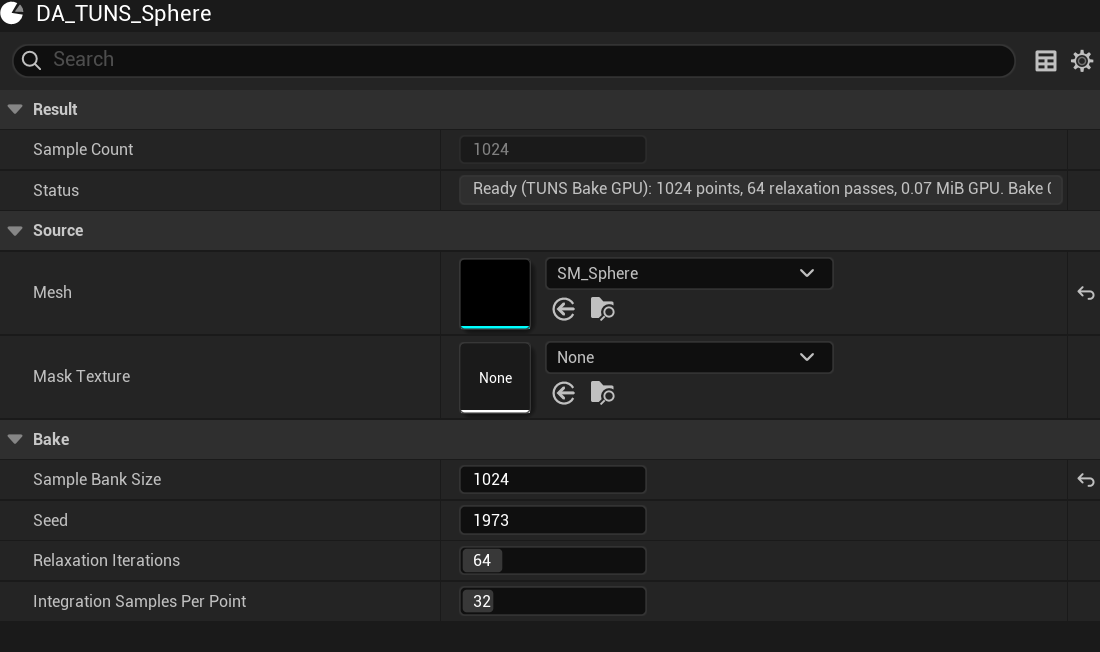
- Mesh
The LOD 0 surface to bake.
- Optional mask
Leave empty for the full surface.
- Bank size
Reusable points; Niagara controls live particle count.
A skeletal bake stores locations on triangles in the reference pose. The skeletal Niagara input resolves those locations against the matching mesh. A static bake also stores positions and normals.
A cancelled or failed bake retains previous data. That does not mean it matches your new settings; check Status and Is Ready.
Paint and tune a mask
- Paint using the mesh’s UV layout: black excludes an area; brighter values attract more samples.
- Assign Mask Texture and the matching UV Channel.
- Set Mask Channel: 0 = Red, 1 = Green, 2 = Blue, 3 = Alpha.
- Use Invert to swap high and low values. Threshold excludes values at or below its cutoff.
- Use Power to shape relative density. Values above 1 favor bright regions; values below 1 give darker regions more weight. Rebake.
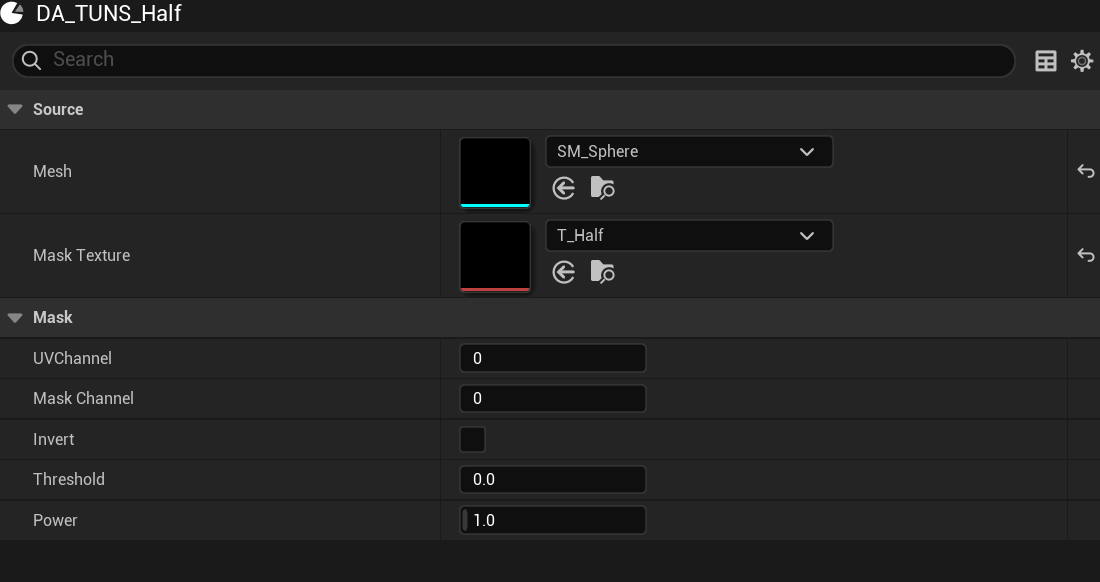
- Mask Texture
Paint for this mesh’s UV layout.
- UV Channel
The UV set on the mesh.
- Mask Channel
0 is Red; 3 is Alpha.
- Threshold
Exclude faint values.
- Power
Shape density in the remaining region.
| Mask | Result |
|---|---|
| None / white | Full available surface |
| Black | No valid sample locations |
| Black and white | The bank concentrates in white areas |
| Uniform gray above threshold | Still a full bank; gray is weight, not a count control |
| Gradient | More points in brighter areas |
The baker reads mask values as linear data from the source image, with bilinear sampling and UVs clamped to 0–1. It does not modify source texture compression or streaming settings.
Bank size and bake quality
| Setting | Use |
|---|---|
| Sample Bank Size | 256–262,144 points; rounded up to a power of two. |
| Seed | Changes the baked distribution. Requires a rebake. |
| Relaxation Iterations | 1–256 surface-spacing passes. Start at 64. |
| Integration Samples Per Point | 8–128 integration samples per bank point. Start at 32. |
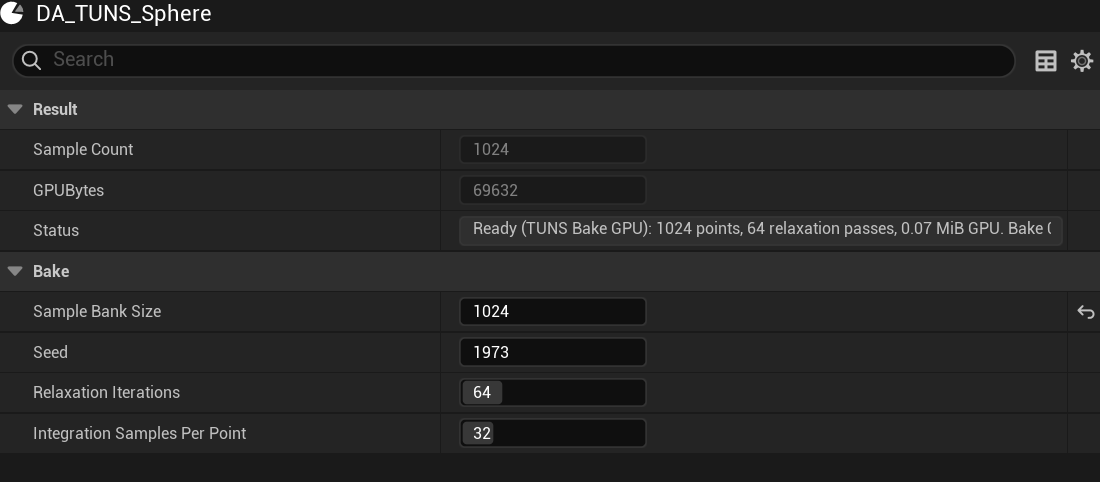
- Bank capacity
More saved points enlarge the atlas.
- Relaxation Iterations
64 in these examples.
- Integration Samples Per Point
32 in these examples.
Choose enough points for the unique locations you need. A 65,536-point bank supports 65,536 sequential sample indices before wrapping. More particles reuse locations; they do not create more spacing.
Progressive ordering gives useful coverage when you use fewer points. More bake work can improve spacing until convergence, but does not guarantee mathematically identical distances.
Inspect the preview
- Click Frame Mesh. Use Alt + left drag to orbit, middle drag to pan and the wheel to zoom.
- Enable Points. X-ray shows points behind the surface.
- Set the preview limit beside X-ray to 65,536 to inspect an entire bank of that size.
- Under Preview, choose Opaque Black or Translucent if the supplied mesh material hides points.
- Adjust Point Surface Offset only to make preview dots easier to see.
- Frame Mesh
Fit the mesh in view.
- Points
Show or hide dots.
- X-ray
See points through the surface.
- Preview limit
Set this to the bank count to display every point.
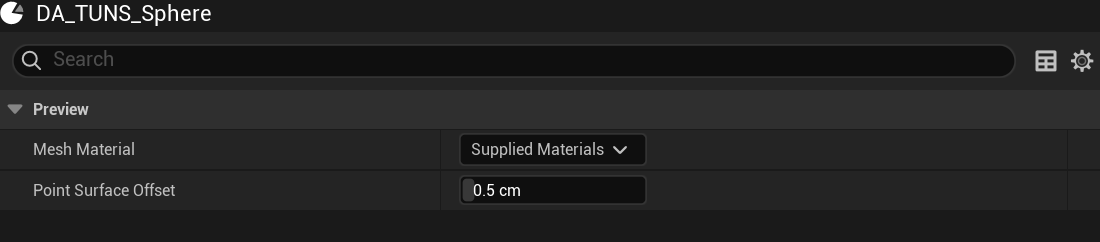
- Mesh Material
Supplied, opaque black or translucent.
- Point Surface Offset
Use Niagara’s NormalOffset for the actual effect.
Preview Vanilla shows random triangle sampling. Preview Equal Vanilla shows surface-area-weighted random sampling. Both apply mask rejection; neither applies spacing relaxation. Click the active button again to return to TUNS.
Combine several bakes
- Bake at least two assets using the same mesh and UV channel. Different masks are useful here.
- Create a separate destination bake. Set its Mesh and UV Channel first.
- Add the ready source assets to Combine Sources.
- Click Combine Bakes. Confirm the combined Sample Count and Ready status.
- Assign the destination to Niagara’s Surface field.
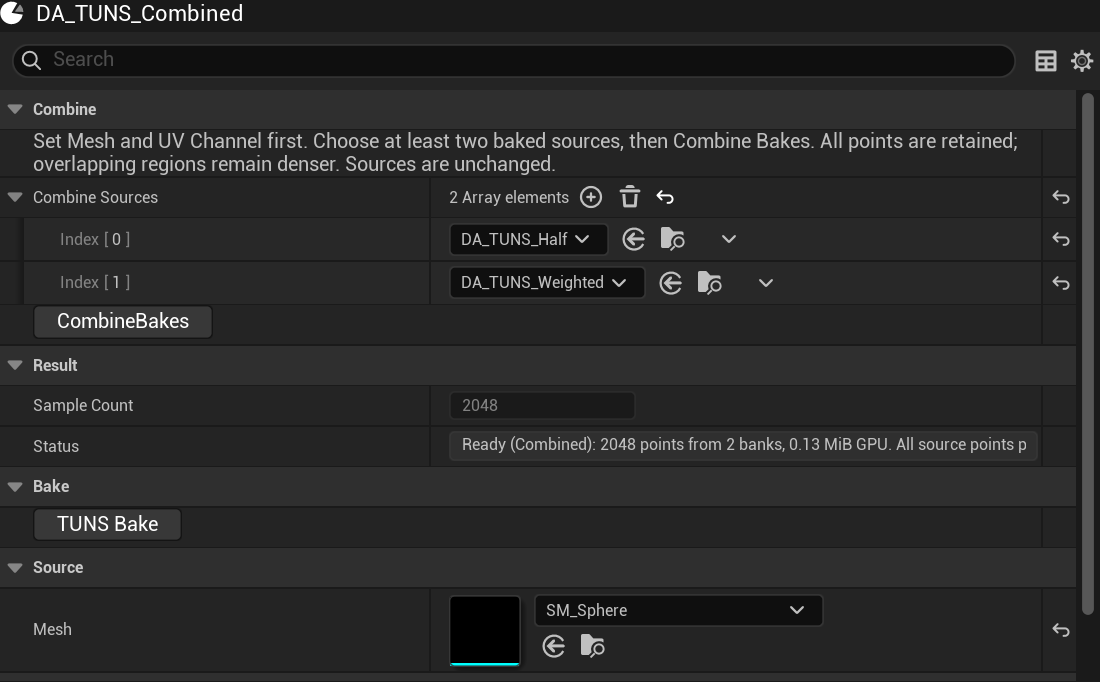
- Sources
Current bakes for this mesh and UV channel.
- Combine Bakes
Pack all source points.
- Sample Count
The sum of the source counts.
Combining preserves positions and weights and interleaves banks proportionally. It does not relax spacing or remove duplicates between banks. Overlapping regions remain denser. Source assets are unchanged.
Maximum combined bank: 1,048,320 points. Self references, duplicate sources, stale sources and cycles are rejected. The destination’s Sample Bank Size does not choose the combined count.
Static-mesh emitter
1. Prepare the emitter
- Create a Niagara System with an editable emitter and a Sprite Renderer. Start with Spawn Burst Instantaneous → Spawn Count = 1,024.
- Select Emitter Properties. Choose GPU Compute Sim, enable Local Space, and set Fixed Bounds large enough to contain the mesh and effect.
- Keep Initialize Particle in Particle Spawn. Use a small sprite size, a visible color and enough lifetime to inspect the effect.
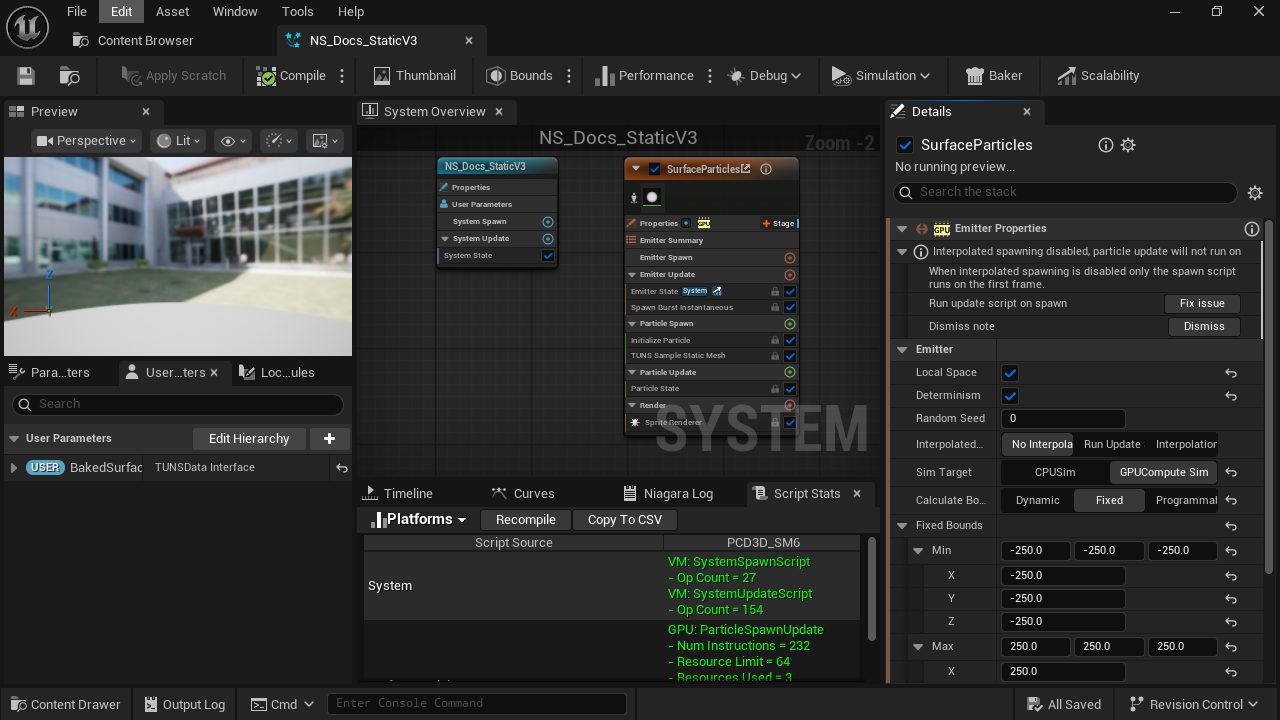
- Local Space
Positions are relative to the Niagara component.
- GPU Compute Sim
TUNS sampling runs on the GPU.
- Fixed Bounds
Include the full mesh and any particle movement.
2. Connect the baked surface
- Create and populate User.BakedSurface with your static bake.
- Under Particle Spawn, add
TUNS_SampleStaticMeshafter Initialize Particle. Search TUNS; enable plugin/library content if it is filtered out. - Bind SamplingData to
User.BakedSurface. Start with Seed = 0 and NormalOffset = 0.25. - Remove later location modules that overwrite the position. Compile and save.
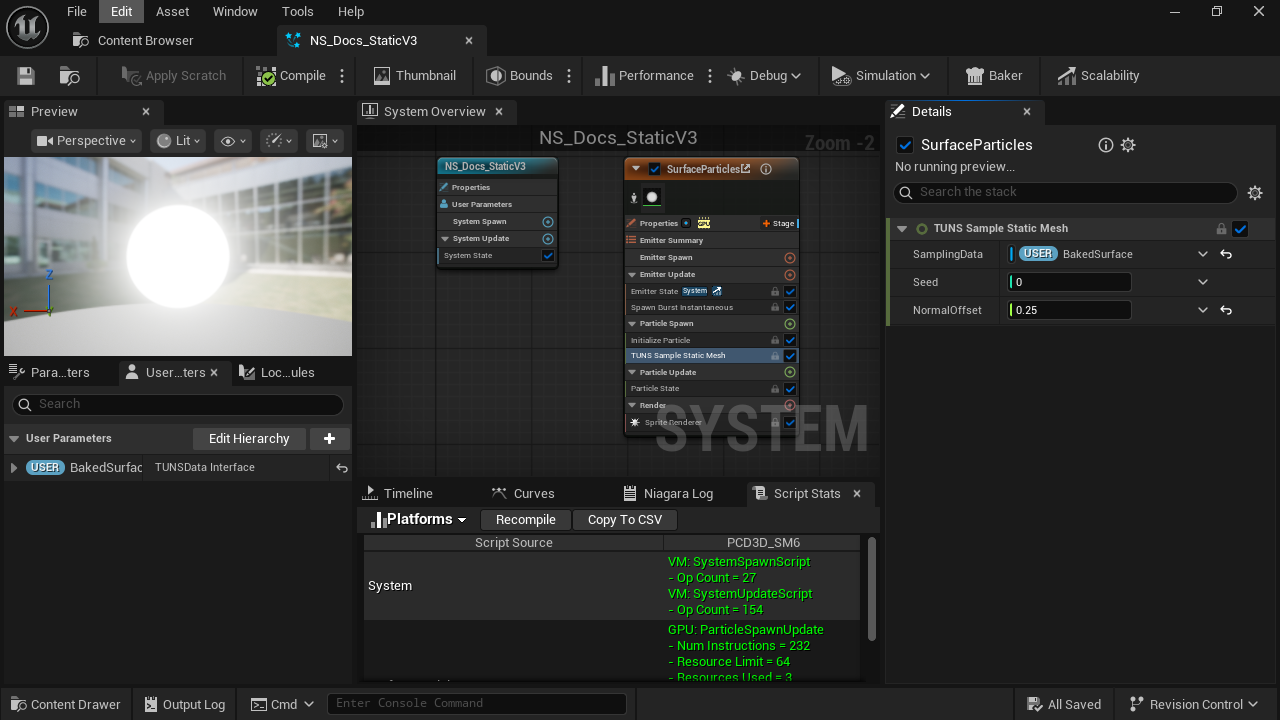
- Sampler placement
After Initialize Particle in Particle Spawn.
- SamplingData
Select User.BakedSurface in the binding menu.
- NormalOffset
Lift the sample slightly off the surface.
3. Place the effect
Match the Niagara component’s position, rotation and scale to the baked mesh. No separate Static Mesh data interface is needed: the bank already stores its positions.
Skeletal-mesh emitter
1. Add the skeletal sampler
- Bake the exact skeletal mesh used by your actor. TUNS uses its LOD 0 geometry and the chosen UV channel.
- Prepare a GPU emitter with a spawn count, initialization, fixed bounds and a renderer, as shown in the emitter setup.
- Add
TUNS_SampleSkeletalMeshafter Initialize Particle in Particle Spawn. - Bind SamplingData to a BakedSurface user parameter containing the skeletal bake.
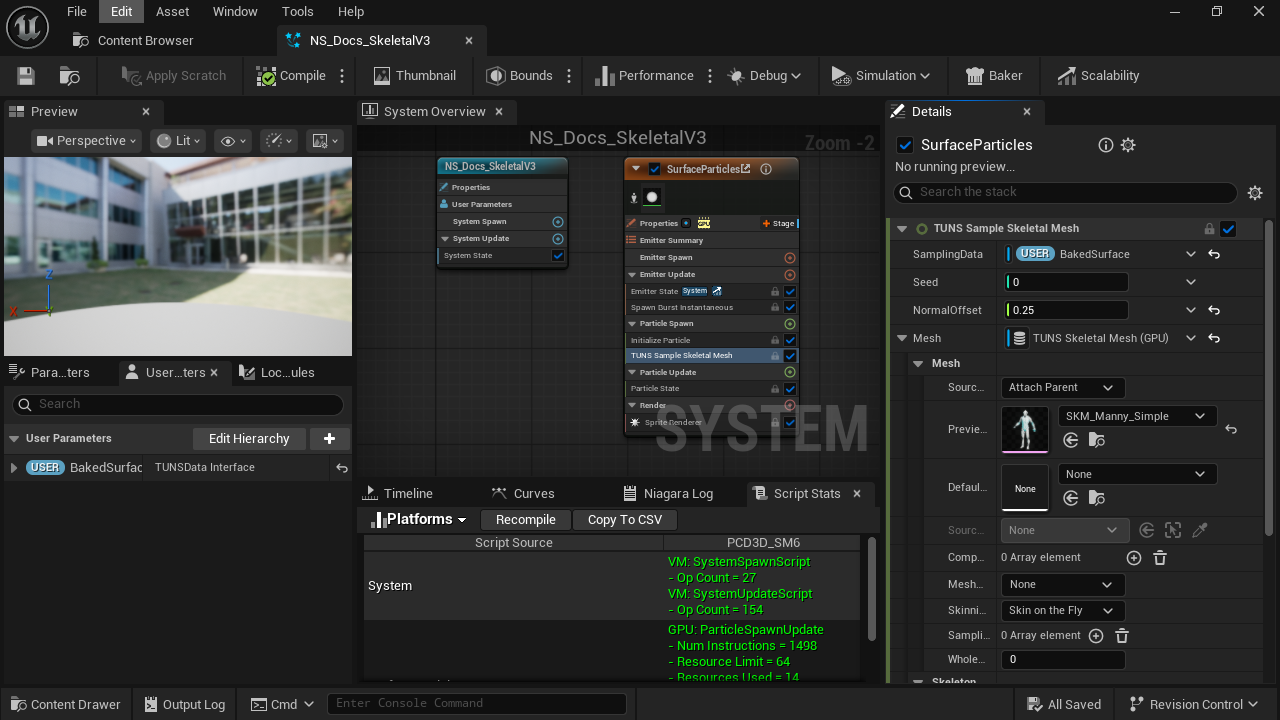
- Particle Spawn
Samples the current animated pose when each particle is born.
- SamplingData
Select the skeletal bake input.
- Mesh
Use TUNS Skeletal Mesh (GPU).
2. Set the mesh source
- Expand Mesh. Set Source Mode = Attach Parent.
- Set Preview Mesh to the matching skeletal mesh, and keep Whole Mesh LOD = 0.
- Start with Seed = 0 and a small NormalOffset, such as 0.25.
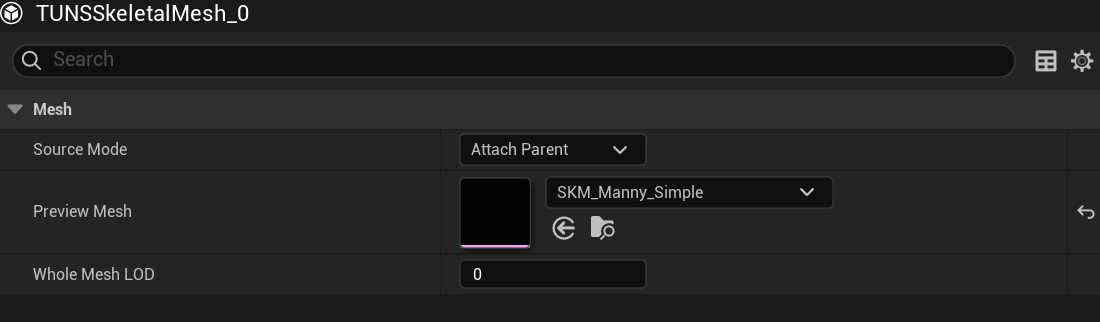
- Attach Parent
Use the parent Skeletal Mesh Component.
- Preview Mesh
Choose the same mesh used by the bake.
- Whole Mesh LOD
Keep 0 to match the bank’s triangle indices.
3. Attach Niagara to the actor
- Open the actor Blueprint. Add or select its Skeletal Mesh Component and assign the matching mesh.
- Add a Niagara Component and drag it beneath the Skeletal Mesh Component in the Components tree. Assign your Niagara System.
- For a local-space effect, reset the Niagara component’s relative location and rotation to zero and scale to 1. Compile, save and test Play with an animation.
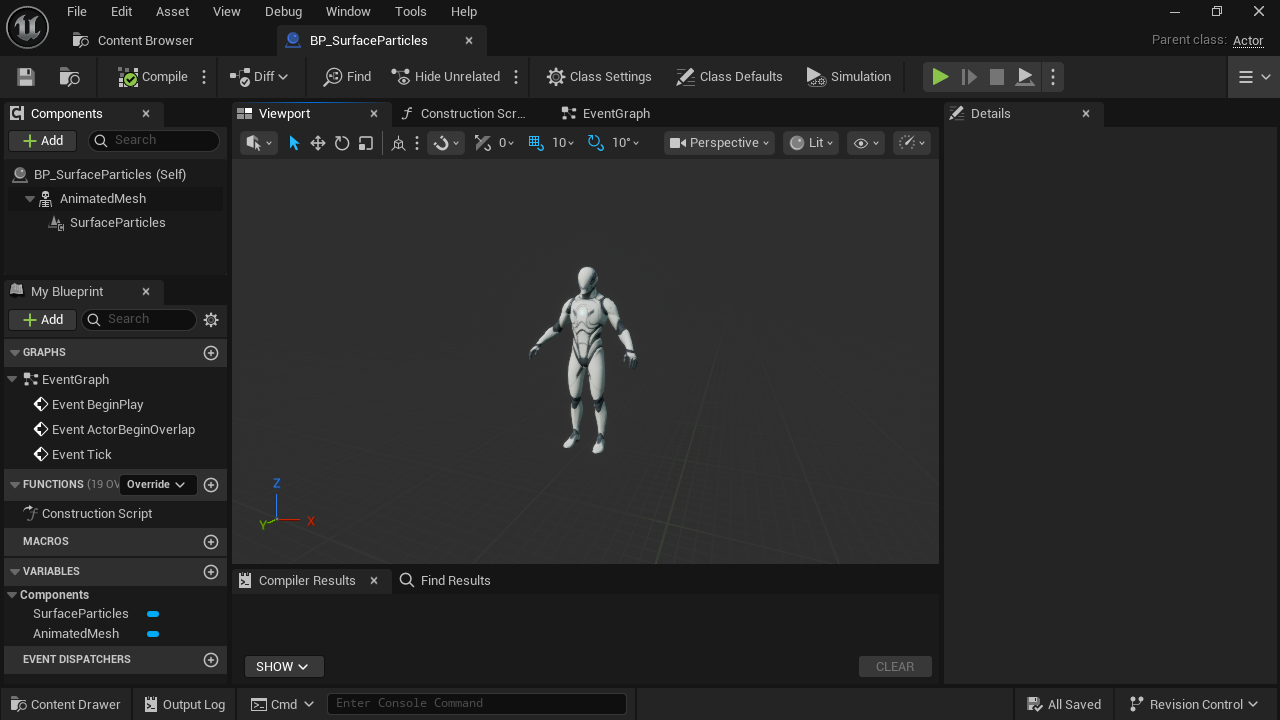
- AnimatedMesh
The Skeletal Mesh Component playing the animation.
- SurfaceParticles
Attach the Niagara component here.
For surface attachment, continue with Follow an animated mesh. A shared skeleton alone is not enough: the mesh geometry and triangle topology must match the bake.
Expose a user parameter
1. Create the input
- Open the Niagara System. In User Parameters, click + and search for TUNS Baked Surface (GPU).
- Name the parameter BakedSurface. Expand it and set Surface to your saved TUNS Surface Bake.
- Add a user parameter
Click + and choose TUNS Baked Surface (GPU).
- Expand BakedSurface
Open the parameter to assign its Surface field.
- SamplingData binding
Choose User.BakedSurface.
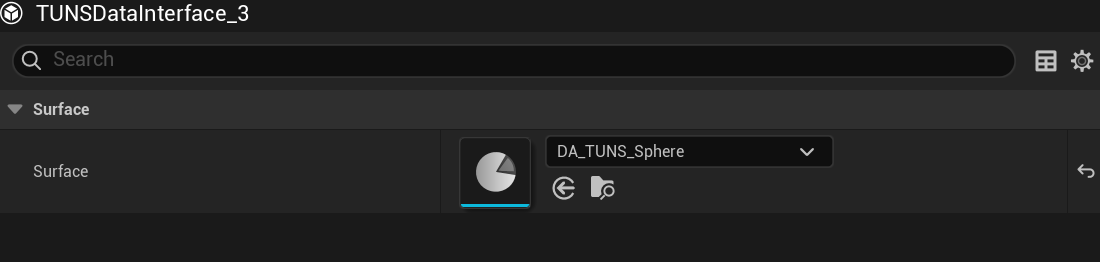
- Surface
Choose the baked Data Asset, not the source mesh or mask texture.
2. Bind and reuse it
- Select the TUNS sampling module. Open the binding menu beside SamplingData and select
User.BakedSurface. - Compile and save. For a different actor using the same system, select its Niagara component and assign a compatible bake in its user-parameter overrides.
BakedSurface is your chosen name. The SamplingData binding must match it. The supplied examples already define this parameter.
Use the sampled attributes
These are Niagara particle attributes. The sampler writes them before later modules run.
| Attribute | Use |
|---|---|
| Particles.Position | Position already set by the sampler, including NormalOffset. |
| Particles.TUNS.Position | Stored sampled position, including the offset. Useful as an effect origin. |
| Particles.TUNS.Normal | Surface normal; use for outward motion or orientation. |
| Particles.TUNS.UV | UV at the sample; use for color or reveal textures. |
| Particles.TUNS.MaskWeight | Baked density weight; use for brightness or size. |
| Particles.TUNS.TriCoord | Triangle and barycentric coordinate for this sample. |
| Particles.TUNS.Triangle | Triangle index. |
| Particles.TUNS.Velocity | Skeletal velocity; zero for the static module. |
| Particles.TUNS.Valid | Whether the sample is usable. Invalid samples are also marked not alive. |
Example: inherit the mesh’s motion
- Use the skeletal sampler in Particle Spawn. Add Set Variables immediately after it.
- Add
Particles.Velocityto Set Variables. Open its value menu and bindParticles.TUNS.Velocity. - Keep Solve Forces and Velocity in Particle Update. It integrates that velocity as the particle moves.
- Play the skeletal animation. Each new particle receives the surface velocity at its birth; it can then move independently.
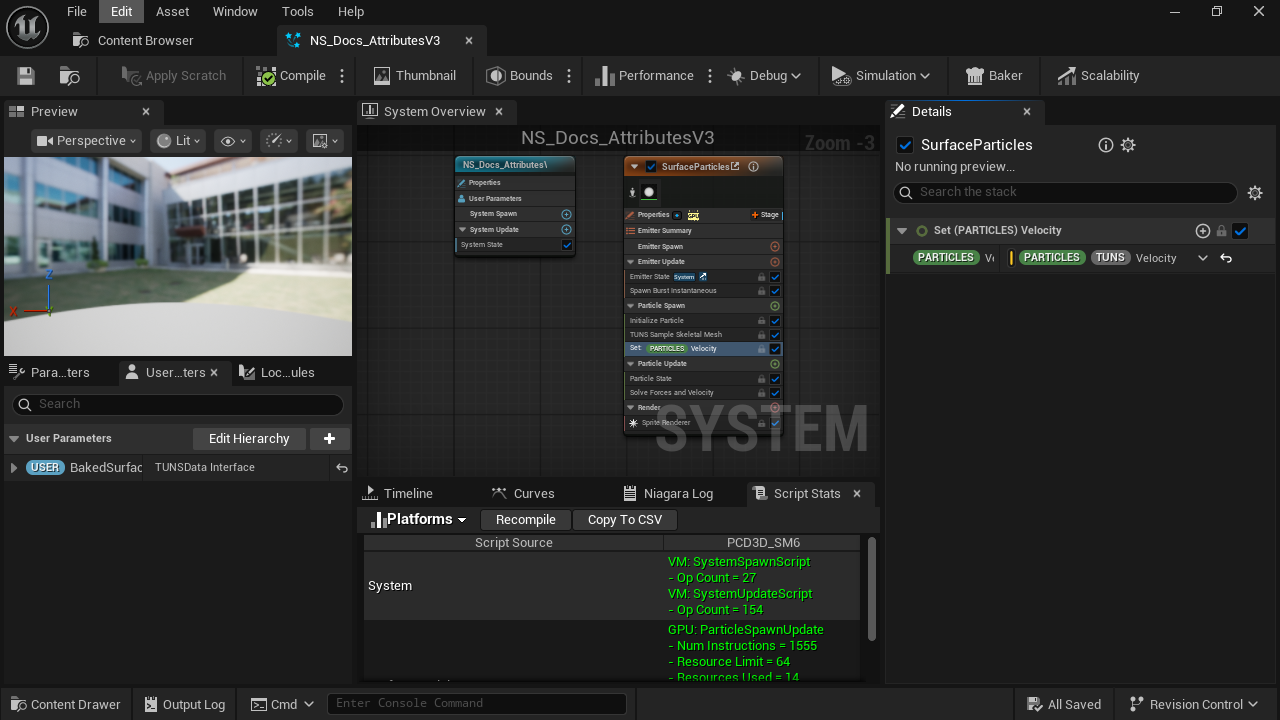
- Set Variables
Place after TUNS so the sampled attributes exist.
- TUNS.Velocity
Bind this as the value of Particles.Velocity.
- Solve Forces and Velocity
Integrates the particle’s movement in Update.
For outward motion, use Particles.TUNS.Normal × Speed instead. For texture color or reveal effects, use Particles.TUNS.UV as the texture coordinates.
Follow an animated mesh
Use the same TUNS_SampleSkeletalMesh module in Particle Spawn and Particle Update to keep particles on an animated mesh. No scratch module or additional bool is needed.
1. Finish the spawn setup
- Complete the skeletal-mesh setup and test the effect on the animated actor.
- Keep the sampler after Initialize Particle in Particle Spawn. This sets the position on the first frame.
2. Add the same sampler in Update
- Under Particle Update, click + and add
TUNS_SampleSkeletalMesh. - Use the same SamplingData, Mesh source, Seed and NormalOffset as the Spawn copy. Keep Whole Mesh LOD at 0 in both.
- Place it after any Update modules that move the particles. The last position write determines where they render.
- Compile and save. Play the character animation: existing particles should move with the sampled surface.
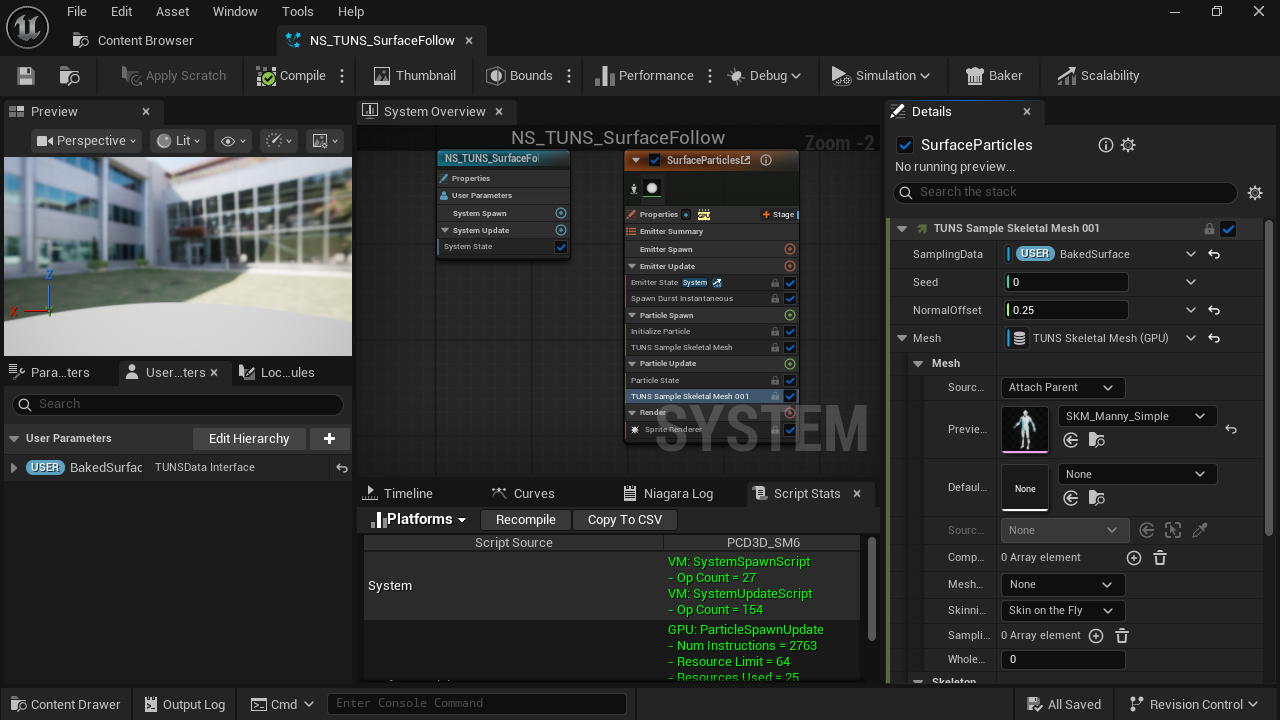
- Spawn copy
Initial placement on the current pose.
- Update copy
Refreshes the surface position each frame.
- Same inputs
Match the bank, mesh, seed and offset used at spawn.
- Matching mesh source
Attach Parent reads the actor’s animated Skeletal Mesh Component.
Choose the behavior you need
| Effect | Sampler placement |
|---|---|
| Sparks or debris that leave the character | Particle Spawn only. Add velocity or forces for later motion. |
| Particles that remain on the animated surface | Particle Spawn and Particle Update. |
| Ribbon points that remain attached | Spawn and Update for the points that must stay on the surface. Configure Ribbon ID and link order separately. |
| A trail that should remain behind a moving source | Do not keep resampling all old trail points in Update. |
Animation stretches the saved distribution; TUNS does not rebake or redistribute points each frame. Keep Seed stable so an existing particle keeps its sample location.
Spacing: Unreal vs TUNS
Unreal’s area-weighted sampler balances coverage by triangle area. TUNS also relaxes the spacing between points during the bake. In these captures, TUNS reduced nearest-neighbor spacing variation by 72.2% on the sphere and 64.7% on the skeletal mesh against the area-weighted reference.
Measured spacing consistency
| Reference | Unreal variation | TUNS variation | Less variation |
|---|---|---|---|
| Sphere — area-weighted | 0.520 | 0.145 | 72.2% |
| Skeletal mesh — area-weighted | 0.525 | 0.185 | 64.7% |
| Sphere — ordinary random | 0.581 | 0.145 | 75.1% |
| Skeletal mesh — ordinary random | 0.852 | 0.185 | 78.3% |
Variation is the standard deviation of nearest-neighbor distances divided by their mean; lower means more consistent spacing. The percentage is 100 × (1 − TUNS variation / Unreal variation).
Against Unreal’s area-weighted sampler
Left: Unreal area-weighted sampling. Right: TUNS. Both TUNS banks were freshly GPU baked at 65,536 points, 64 Relaxation Iterations and 32 Integration Samples Per Point.
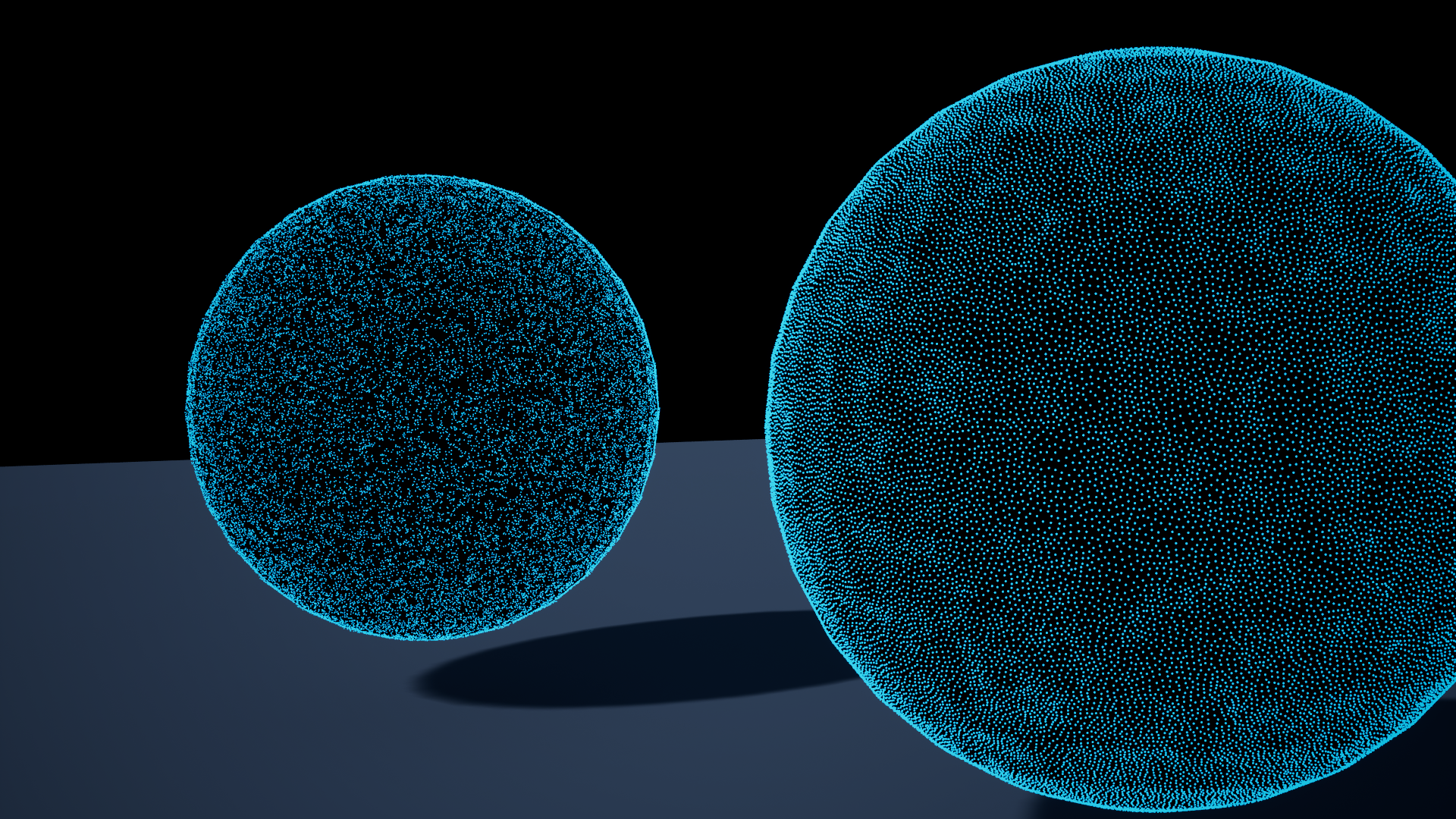
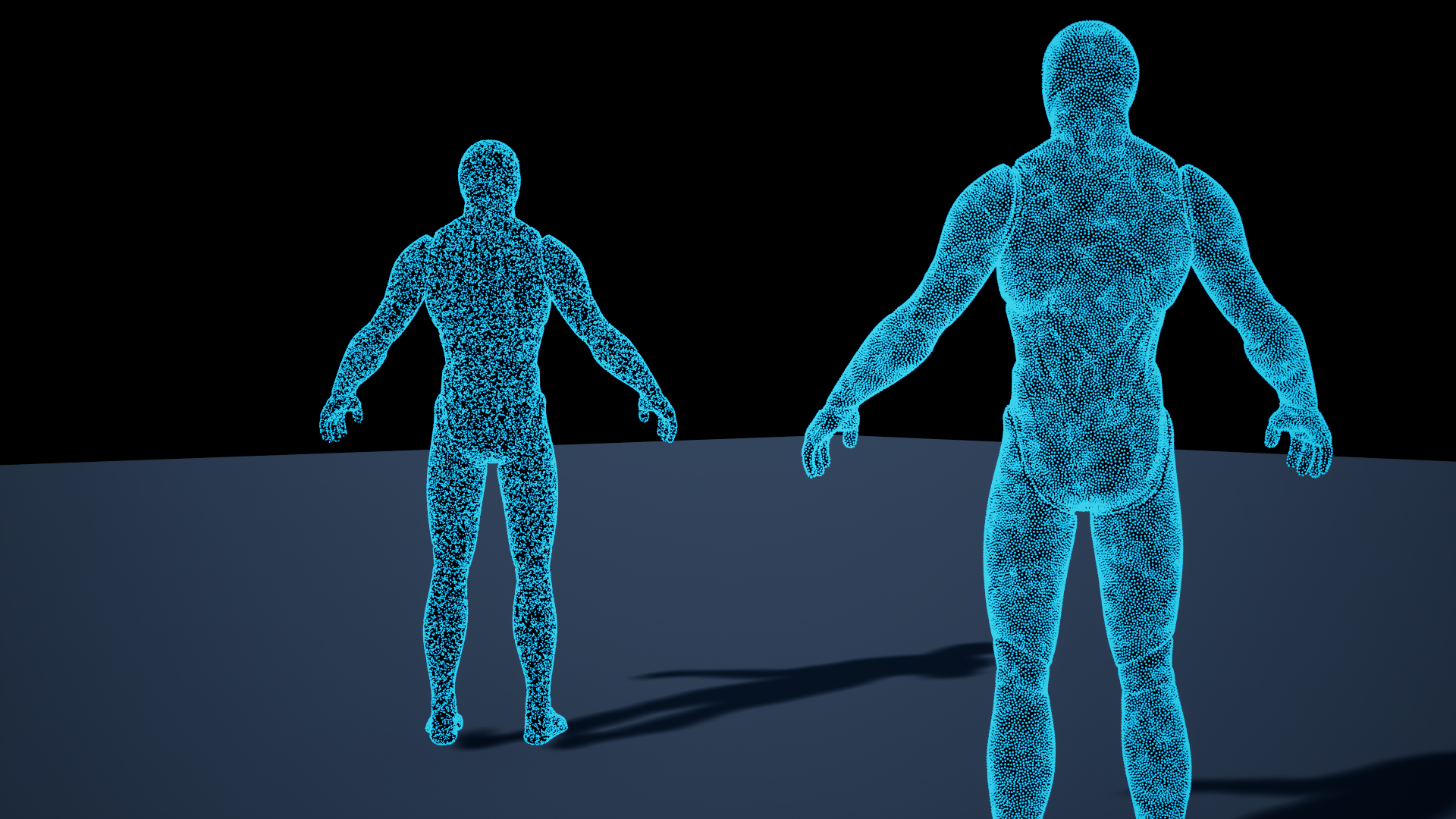
The sphere reference enables CPU and GPU uniform-distribution support. The skeletal reference enables uniform-distribution support on LOD 0, with all 92,178 triangle weights verified. Both use Niagara’s native RandomTriangle function.
Against ordinary random triangle sampling
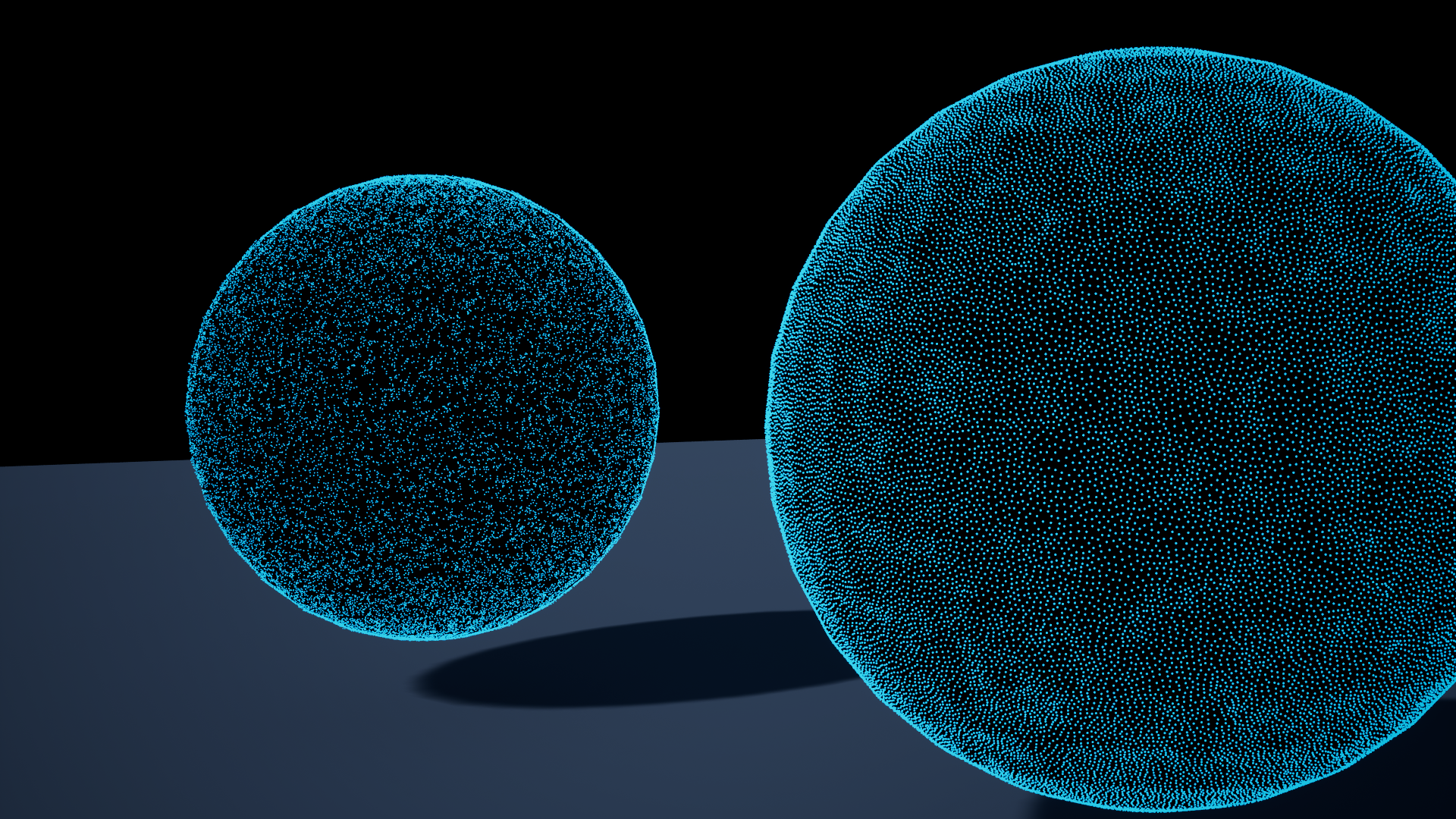
Ordinary random triangle selection also shows density bias from unequal triangle sizes. Area weighting addresses that bias; spacing relaxation addresses the remaining clusters and gaps.
Camera distances match the supplied framing, so apparent dot size is not the numerical measurement. Percentages come from captured particle positions. For timing comparisons, see Memory and runtime cost.
Runtime cost and memory
This topic covers runtime cost only. Baking is an editor step and is not included here. During gameplay, TUNS reads the prepared sample bank on the GPU; it does not run spacing relaxation or rebuild the distribution.
What costs time at runtime?
| Work | Runtime cost |
|---|---|
| Sampling in Particle Spawn | Each new particle reads a bank entry. Skeletal sampling also resolves that point against the current animated pose. |
| Sampling in Particle Update | Attached particles repeat the sample and skinning work each frame. Use this when they must follow the surface. |
| More live particles | More Niagara simulation and rendering work, even when they share a sample bank. |
| Larger translucent sprites | More pixels to shade and potentially more overdraw. |
| Larger sample bank | A larger GPU atlas to keep resident. Bank capacity does not set the live particle count. |
Baked masks add no mask draw calls
The mask’s allowed regions and density are already stored in the baked distribution. TUNS does not render or sample the original mask texture for runtime particle placement, so the baked mask adds no runtime draw calls. The particles still have their usual renderer and material costs.
More particles than samples
Sample Bank Size is the number of reusable surface locations, not a particle limit. Sample indices wrap around the bank. For example, a burst of 4,096 particles can reuse a 1,024-point bank four times.
Those particles reuse the same surface locations; TUNS does not create another bank or generate extra unique points. They can overlap at spawn, then separate through their own motion. Particles kept attached can remain stacked at shared locations.
A smaller bank reduces atlas memory. Each particle still performs its own sampling, simulation and rendering work, so reusing locations does not make the extra particles free.
GPU memory
A 65,536-point bank uses approximately 2 MiB for skeletal samples or 4 MiB for static samples, plus a small header. Static banks also store positions and normals. GPUBytes reports the bank payload, not total VRAM used by meshes, materials, Niagara or the scene.
Compare runtime performance fairly
Match the mesh, mask coverage, live particle count, renderer, material, camera and resolution. Warm up shaders and loading, then run each method separately. Compare whole-frame, game-thread and GPU time; a side-by-side scene measures both effects together.
The comparison screenshots measure spacing quality, not runtime timing.
Rebaking and packaging
- After geometry, UV, mask or bake-setting changes, run TUNS Bake again.
- Recombine dependent destinations after their source banks are ready.
- Compile and save affected systems, then restart Niagara preview or components.
- Keep references to required bakes in system/component defaults or normal project assets so cooking includes them.
- Package a small test scene for your actual target. Check every static and skeletal path you use.
Use the engine-matched plugin. Author assets in the oldest engine version you need to support; saving in a newer engine is not a dependable way to deliver assets to an older one.
Rebaking requires the source mesh. Skeletal runtime sampling needs the matching mesh component. Static runtime sampling uses positions stored in the bake.
Fix common problems
| Symptom | Check |
|---|---|
| Missing assets or modules | Enable TUNS and Niagara, show Plugin Content and check search filters and engine version. |
| No baked points | Check LOD 0 triangles and the UV channel. Temporarily remove the mask; black or rejected values provide no locations. |
| Tiny masked region fails | Check UVs and threshold. Broaden the allowed region or reduce bank size. |
| GPU bake fails | Read Status and Output Log. Confirm rendering and a working RHI/shader target. There is no silent CPU fallback. |
| Niagara rejects the bake | Rebake after changes; rebuild combined destinations; check Is Ready. |
| Invisible particles | Check GPU Compute Sim, Surface, spawn count, lifetime, visible material/size and fixed bounds. |
| Dots are inside the static mesh | Match Niagara position, rotation and scale. Attachment without inheriting scale can put every point inside the visible mesh. |
| Skeletal preview works but Play fails | Check Attach Parent, the actual Skeletal Mesh Component, matching topology and Whole Mesh LOD 0. |
| Particles stay behind during animation | Spawn samples once. Add the same TUNS_SampleSkeletalMesh module in Particle Update to keep particles attached. |
| Offset only affects editor dots | Point Surface Offset is preview-only; use Niagara NormalOffset. |
| Extra particles overlap | Counts above bank capacity reuse positions. Increase the bank or reduce particles. |
| Gray mask does not reduce count | Gray affects density weight. Change Niagara’s spawn count. |
| Source missing in Combine picker | Check mesh, UV channel, readiness, self references, duplicates and cycles. |
For a useful bug report, include engine version, RHI/shader target, Status, mesh type, mask settings and relevant Output Log lines. Reproduce with one bake and one emitter first.
Return to the first-effect walkthrough for a known small setup.
Quick setup for Skeletal Meshes
Use TUNS_SampleSkeletalMesh in Particle Spawn to place new particles on the current animated pose. Add the same module in Particle Update when they should stay attached. No custom scratch module or extra bool is needed.
1. Bake the skeletal mesh
- In the Content Browser, right-click → Miscellaneous → Data Asset → TUNS Surface Bake. Name it
DA_TUNS_Character. - Open the asset. Set Mesh to the exact skeletal mesh used by your character. Leave Mask Texture empty for the whole surface; use UV Channel = 0.
- For this setup:
Sample Bank Size = 1,024
Relaxation Iterations = 64
Integration Samples Per Point = 32.
Click TUNS Bake, confirm Ready, and save.
2. Prepare a Niagara emitter
- Create a Niagara System with one standard emitter. In Emitter Properties, set Sim Target = GPUCompute Sim, enable Local Space, and use Fixed Bounds large enough to contain the animated character.
- Under Emitter Update, add Spawn Burst Instantaneous with Spawn Count = 1,024. Keep Initialize Particle in Particle Spawn, Particle State in Particle Update, and a Sprite Renderer. For testing, use a lifetime of 30 seconds and a small sprite size.
- In User Parameters, add a parameter of type TUNS Baked Surface (GPU) named
BakedSurface. Expand it and set Surface toDA_TUNS_Character.
3. Particle Spawn – spawn from surface point
- Click + beside Particle Spawn and add
TUNS_SampleSkeletalMesh. Place it after Initialize Particle. It appears in the stack as TUNS Sample Skeletal Mesh. - Set SamplingData to
User.BakedSurface. Start with Seed = 0 and NormalOffset = 0.25. - Set Mesh to TUNS Skeletal Mesh (GPU). Expand its settings: Source Mode = Attach Parent, Preview Mesh = your baked skeletal mesh, and Whole Mesh LOD = 0.
- Spawn sampler
Place this below Initialize Particle. It writes the particle’s initial position.
- SamplingData
Bind User.BakedSurface, with Surface set to your skeletal bake.
- Mesh input
Use TUNS Skeletal Mesh (GPU), then expand its source settings.
- Attach Parent
Read the animated Skeletal Mesh Component that owns the Niagara component.
- Preview Mesh
Choose the exact skeletal mesh baked in step 1.
- Whole Mesh LOD
Keep 0 so the runtime triangle indices match the bake.
4. Particle Update: Follow the surface after spawning
- For an attached effect, keep the Spawn copy. Click + beside Particle Update and add
TUNS_SampleSkeletalMeshagain. - Match the Spawn copy’s SamplingData, Mesh source, Preview Mesh, Whole Mesh LOD, Seed and NormalOffset. Use
User.BakedSurfacein both copies and keep Seed constant. - Place the Update copy after Particle State and after any modules that change position. For this simple attached effect, no forces or velocity solver are needed. Compile and save.
- Keep the Spawn copy
Gives the particle a valid surface position on its first frame.
- Add the Update copy
Re-evaluates the same sample on the animated surface each frame.
- Share the same bake
Both SamplingData inputs use User.BakedSurface.
- Match the source
Use the same Attach Parent source, matching mesh and LOD 0 in both copies.
5. Attach it to the animated character
- Open the character or actor Blueprint. Add a Niagara Component, assign your Niagara System, and drag the component beneath the matching Skeletal Mesh Component in the Components tree.
- Reset the Niagara component’s relative location and rotation to 0, and scale to 1. Play an animation on the Skeletal Mesh Component, then compile, save and test Play.
- With Spawn + Update, the same particles should stay on the animated surface. Disable the Update copy to compare: particles keep their last sampled positions and are no longer refreshed with the changing pose. Restart the effect to test its spawn behavior again.
- Skeletal Mesh Component
Assign the mesh that matches the bake and play its animation.
- Niagara child
Attach the effect here so Attach Parent finds the animated mesh.