
Follow an animated mesh
Keep particles attached using the same skeletal sampler in Spawn and Update.
Use the same TUNS_SampleSkeletalMesh module in Particle Spawn and Particle Update to keep particles on an animated mesh. No scratch module or additional bool is needed.
1. Finish the spawn setup
- Complete the skeletal-mesh setup and test the effect on the animated actor.
- Keep the sampler after Initialize Particle in Particle Spawn. This sets the position on the first frame.
2. Add the same sampler in Update
- Under Particle Update, click + and add
TUNS_SampleSkeletalMesh. - Use the same SamplingData, Mesh source, Seed and NormalOffset as the Spawn copy. Keep Whole Mesh LOD at 0 in both.
- Place it after any Update modules that move the particles. The last position write determines where they render.
- Compile and save. Play the character animation: existing particles should move with the sampled surface.
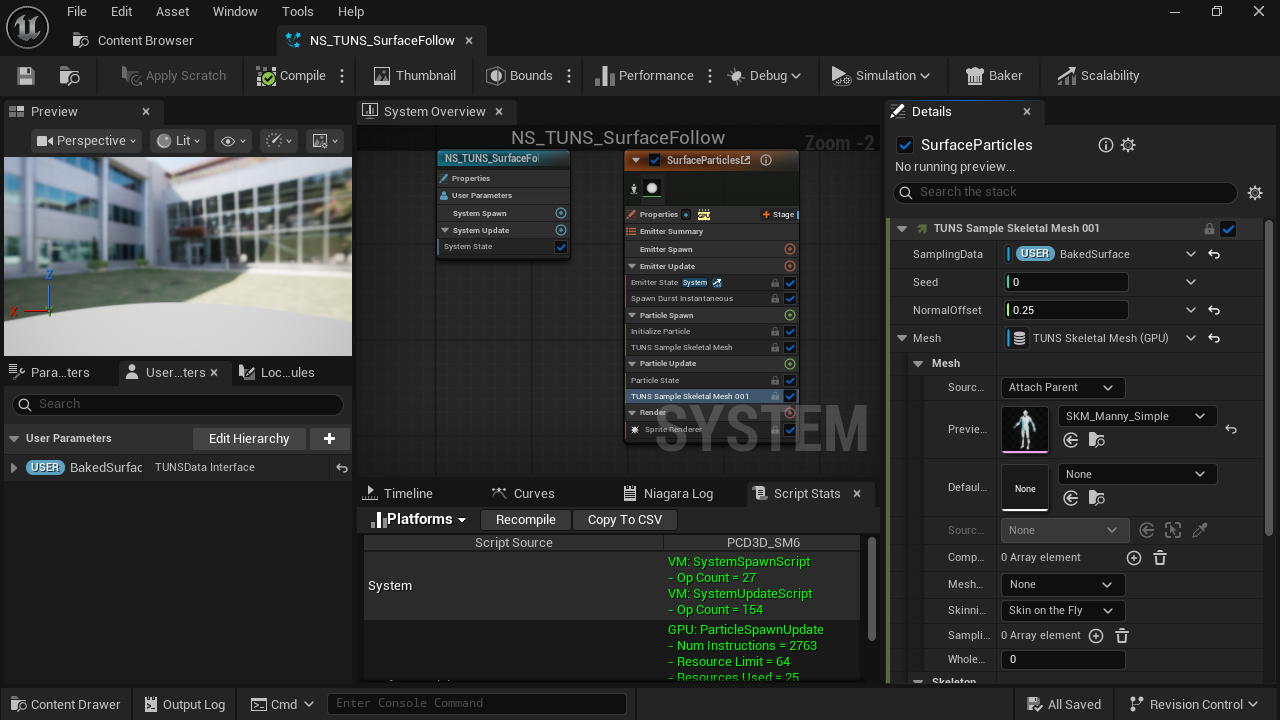
- Spawn copy
Initial placement on the current pose.
- Update copy
Refreshes the surface position each frame.
- Same inputs
Match the bank, mesh, seed and offset used at spawn.
- Matching mesh source
Attach Parent reads the actor’s animated Skeletal Mesh Component.
Choose the behavior you need
| Effect | Sampler placement |
|---|---|
| Sparks or debris that leave the character | Particle Spawn only. Add velocity or forces for later motion. |
| Particles that remain on the animated surface | Particle Spawn and Particle Update. |
| Ribbon points that remain attached | Spawn and Update for the points that must stay on the surface. Configure Ribbon ID and link order separately. |
| A trail that should remain behind a moving source | Do not keep resampling all old trail points in Update. |
Animation stretches the saved distribution; TUNS does not rebake or redistribute points each frame. Keep Seed stable so an existing particle keeps its sample location.
Updated Oct 4, 2026