
Quick setup for Static Meshes
Bake a static mesh sample field and connect it to a Niagara emitter.
1. Sample & Bake a mesh
- Right-click → Miscellaneous → Data Asset. Choose TUNS Surface Bake. for this example we will name it
DA_TUNS_Sphere. - Open it. Set your preferred Mesh, Leave Mask Texture empty and UV Channel = 0.
- Set Sample Bank Size = 1,024, Relaxation Iterations = 64 and Integration Samples Per Point = 32.
- Click TUNS Bake. Confirm Ready in Status and Sample Count = 1,024. Save.
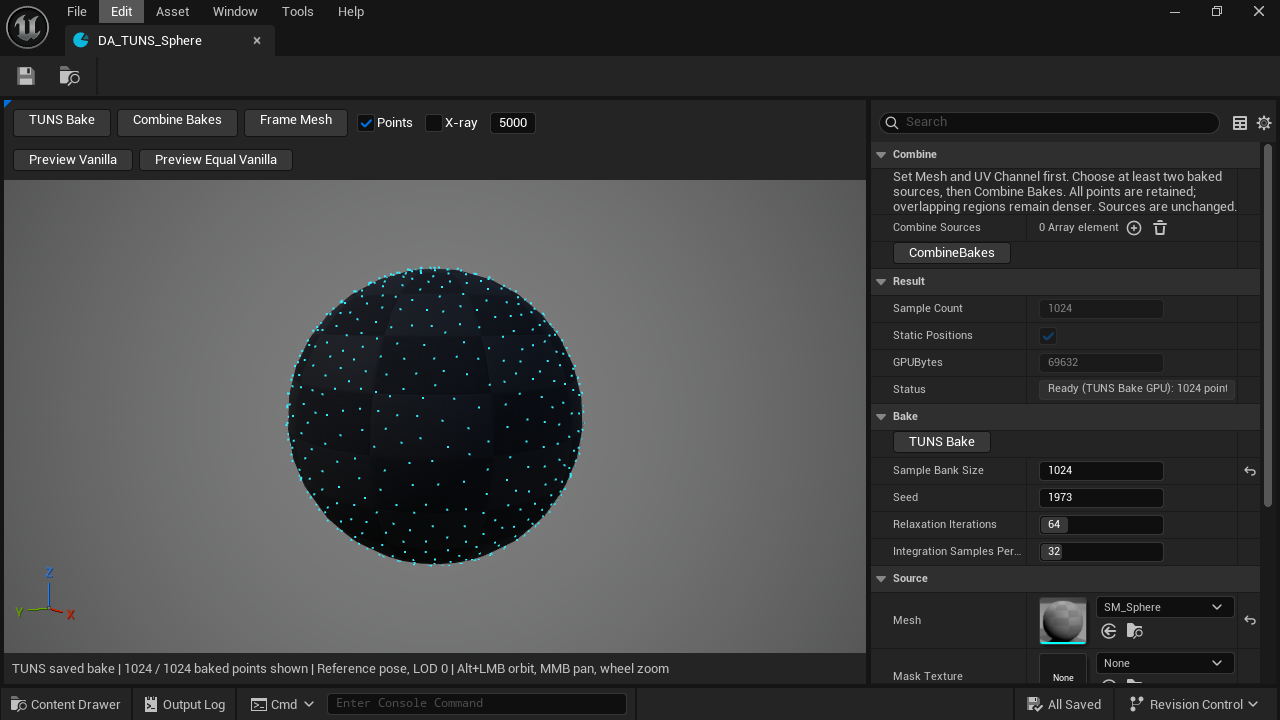
- TUNS BakeBuild and bake down the sample points.
- Preview limitOnly controls the dots drawn in the editor.
- StatusReady means the bake can now be used in Niagara
2. Connect Niagara
- Navigate to Plugin content and duplicate the Niagara System into your project:
Content/Examples/Systems/NS_TUNS_Comparison_SM - Open the duplicate. Disable Before; keep TUNS enabled.
- In User Parameters, expand BakedSurface. Set Surface to
DA_TUNS_Sphere. - Set SampleBudget = 1,024 and Flow = 0. SamplingData is already linked to
User.BakedSurface. - Compile and save. The preview should show dots covering the sphere. Drag the system into your level and test Play.
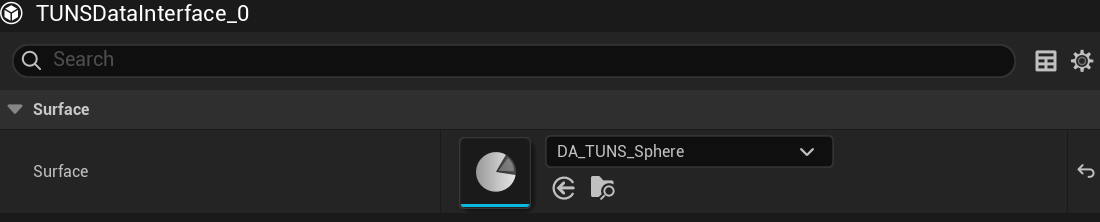
- Surface
Choose the bake, not the source mesh or mask texture.
For a production emitter, follow the static-mesh setup.
Updated Oct 4, 2026