
Skeletal-mesh emitter
Sample the matching skeletal mesh’s skinned surface.
1. Add the skeletal sampler
- Bake the exact skeletal mesh used by your actor. TUNS uses its LOD 0 geometry and the chosen UV channel.
- Prepare a GPU emitter with a spawn count, initialization, fixed bounds and a renderer, as shown in the emitter setup.
- Add
TUNS_SampleSkeletalMeshafter Initialize Particle in Particle Spawn. - Bind SamplingData to a BakedSurface user parameter containing the skeletal bake.
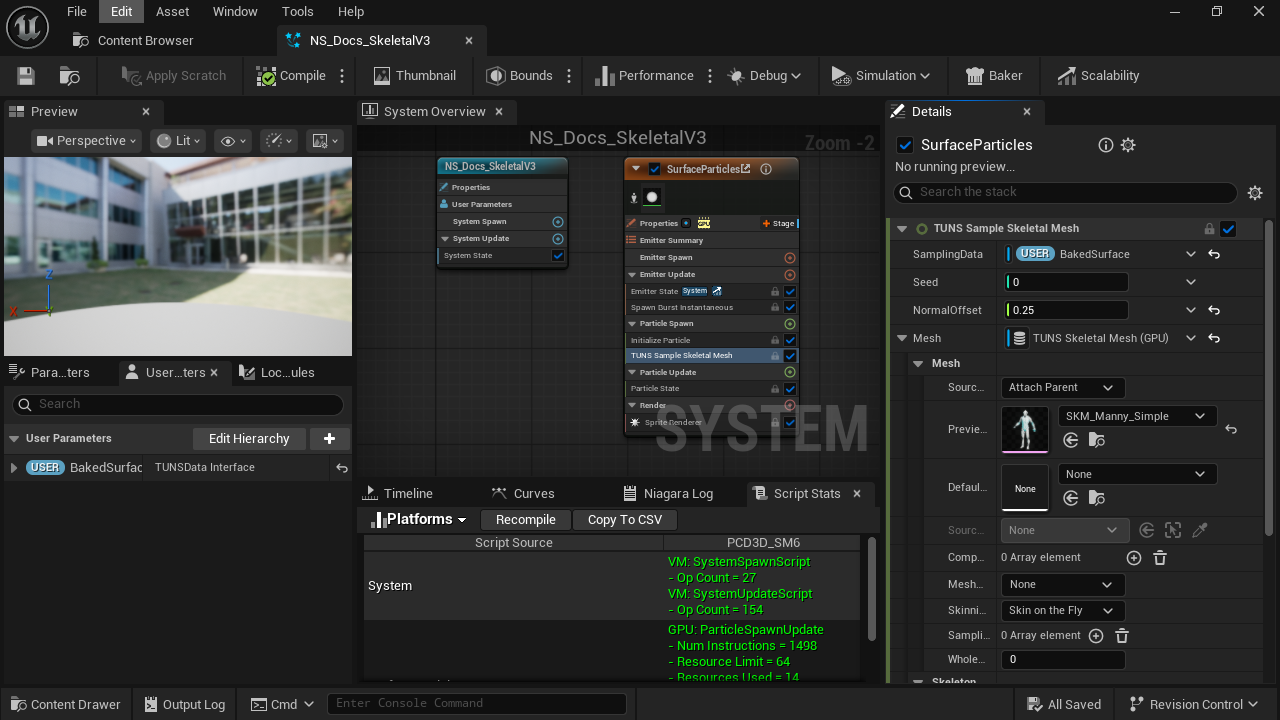
- Particle Spawn
Samples the current animated pose when each particle is born.
- SamplingData
Select the skeletal bake input.
- Mesh
Use TUNS Skeletal Mesh (GPU).
2. Set the mesh source
- Expand Mesh. Set Source Mode = Attach Parent.
- Set Preview Mesh to the matching skeletal mesh, and keep Whole Mesh LOD = 0.
- Start with Seed = 0 and a small NormalOffset, such as 0.25.
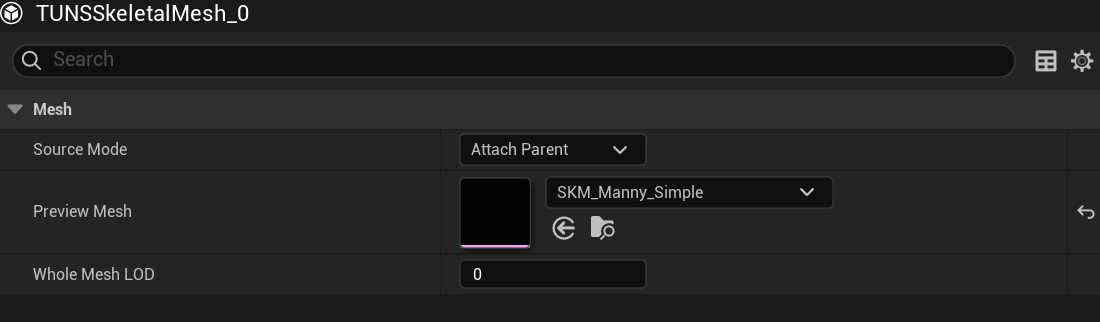
- Attach Parent
Use the parent Skeletal Mesh Component.
- Preview Mesh
Choose the same mesh used by the bake.
- Whole Mesh LOD
Keep 0 to match the bank’s triangle indices.
3. Attach Niagara to the actor
- Open the actor Blueprint. Add or select its Skeletal Mesh Component and assign the matching mesh.
- Add a Niagara Component and drag it beneath the Skeletal Mesh Component in the Components tree. Assign your Niagara System.
- For a local-space effect, reset the Niagara component’s relative location and rotation to zero and scale to 1. Compile, save and test Play with an animation.
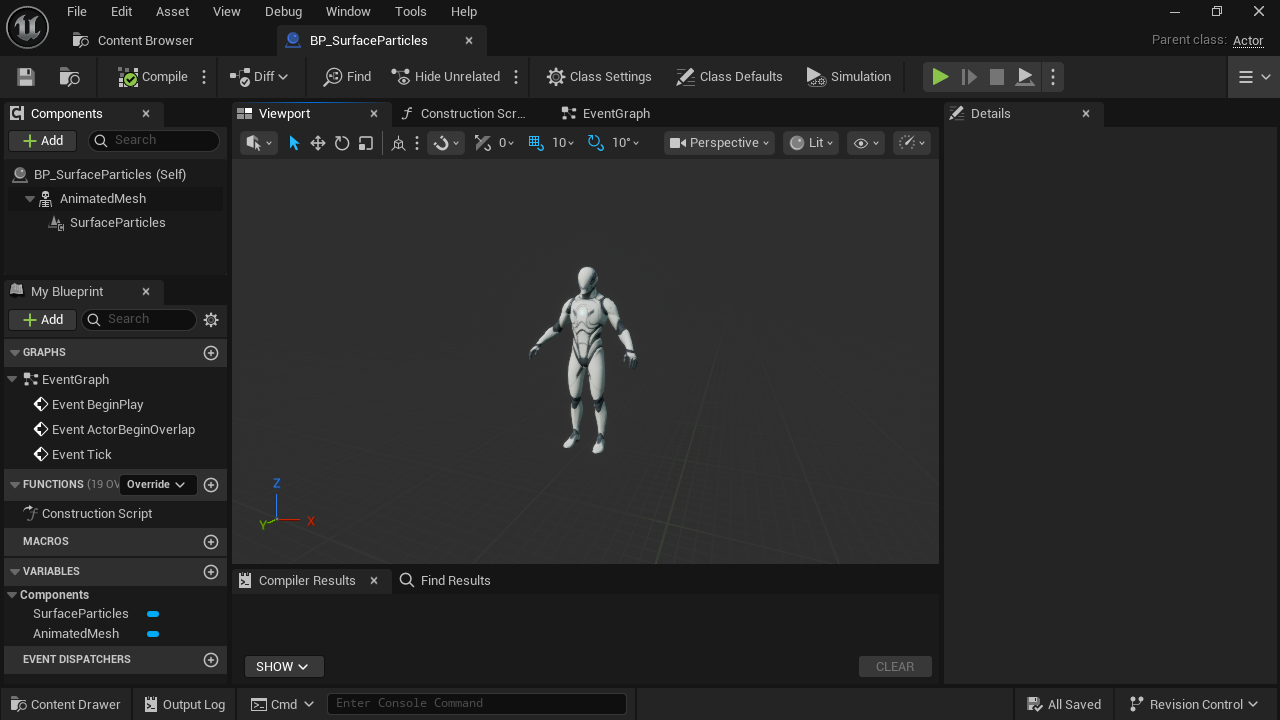
- AnimatedMesh
The Skeletal Mesh Component playing the animation.
- SurfaceParticles
Attach the Niagara component here.
For surface attachment, continue with Follow an animated mesh. A shared skeleton alone is not enough: the mesh geometry and triangle topology must match the bake.
Updated Oct 4, 2026