
Static-mesh emitter
Add TUNS to an editable GPU Niagara emitter.
1. Prepare the emitter
- Create a Niagara System with an editable emitter and a Sprite Renderer. Start with Spawn Burst Instantaneous → Spawn Count = 1,024.
- Select Emitter Properties. Choose GPU Compute Sim, enable Local Space, and set Fixed Bounds large enough to contain the mesh and effect.
- Keep Initialize Particle in Particle Spawn. Use a small sprite size, a visible color and enough lifetime to inspect the effect.
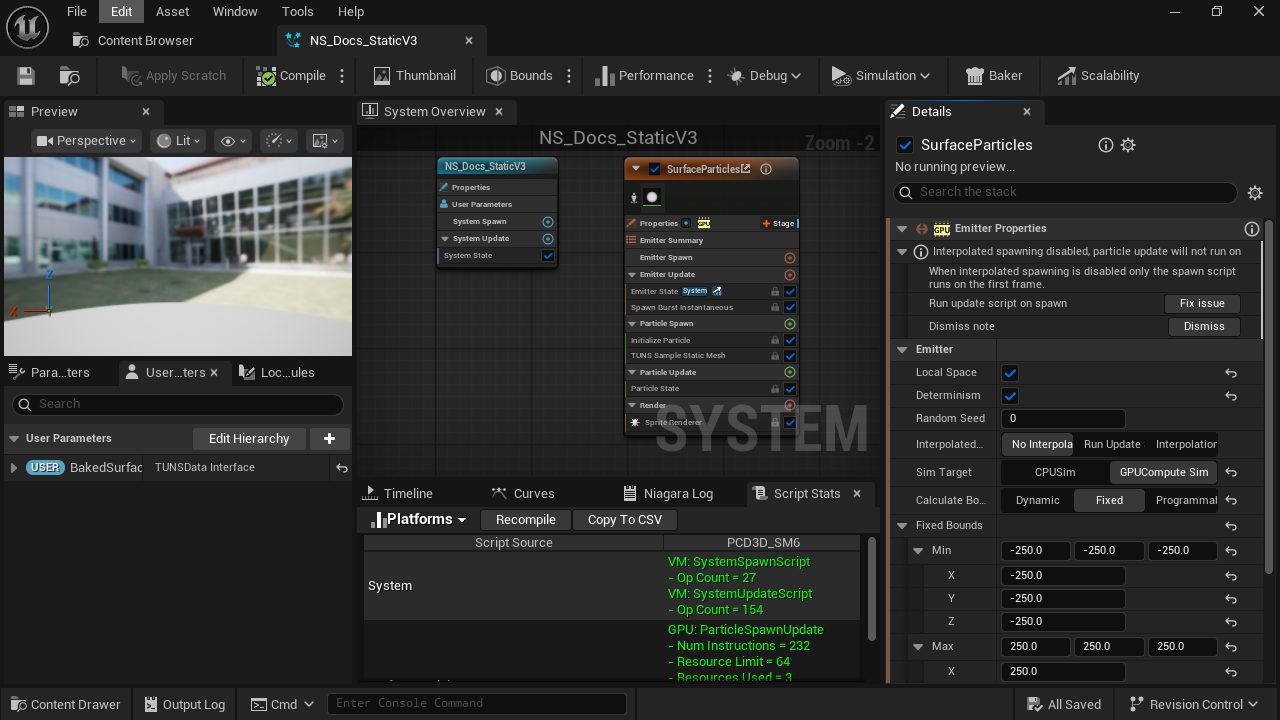
- Local Space
Positions are relative to the Niagara component.
- GPU Compute Sim
TUNS sampling runs on the GPU.
- Fixed Bounds
Include the full mesh and any particle movement.
2. Connect the baked surface
- Create and populate User.BakedSurface with your static bake.
- Under Particle Spawn, add
TUNS_SampleStaticMeshafter Initialize Particle. Search TUNS; enable plugin/library content if it is filtered out. - Bind SamplingData to
User.BakedSurface. Start with Seed = 0 and NormalOffset = 0.25. - Remove later location modules that overwrite the position. Compile and save.
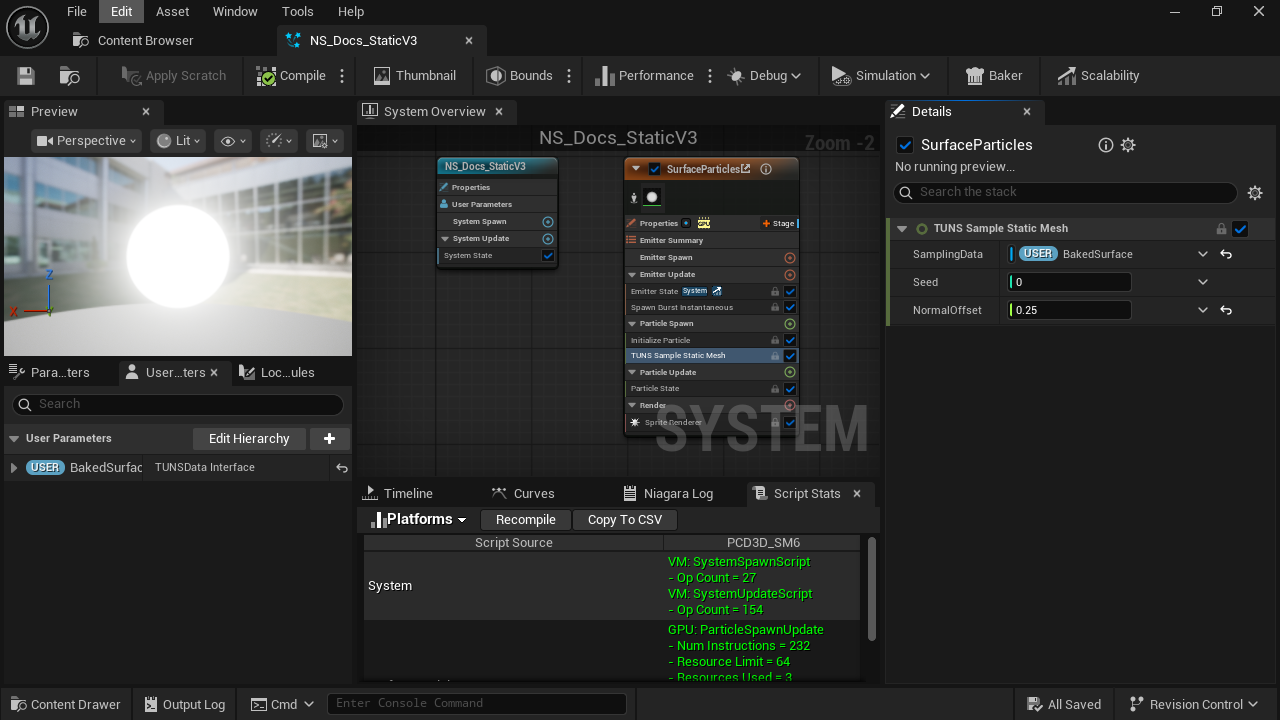
- Sampler placement
After Initialize Particle in Particle Spawn.
- SamplingData
Select User.BakedSurface in the binding menu.
- NormalOffset
Lift the sample slightly off the surface.
3. Place the effect
Match the Niagara component’s position, rotation and scale to the baked mesh. No separate Static Mesh data interface is needed: the bank already stores its positions.
Updated Oct 4, 2026