
Expose a user parameter
Select bakes per component without changing the sampling module.
1. Create the input
- Open the Niagara System. In User Parameters, click + and search for TUNS Baked Surface (GPU).
- Name the parameter BakedSurface. Expand it and set Surface to your saved TUNS Surface Bake.
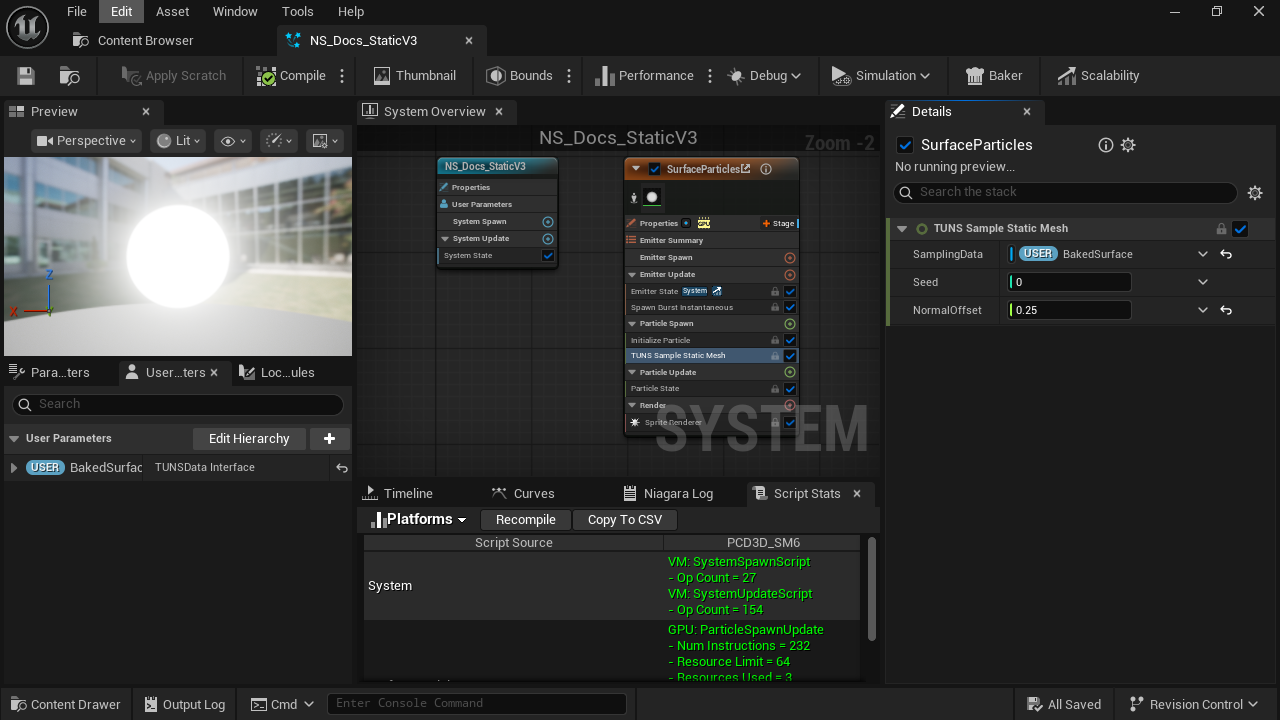
- Add a user parameter
Click + and choose TUNS Baked Surface (GPU).
- Expand BakedSurface
Open the parameter to assign its Surface field.
- SamplingData binding
Choose User.BakedSurface.
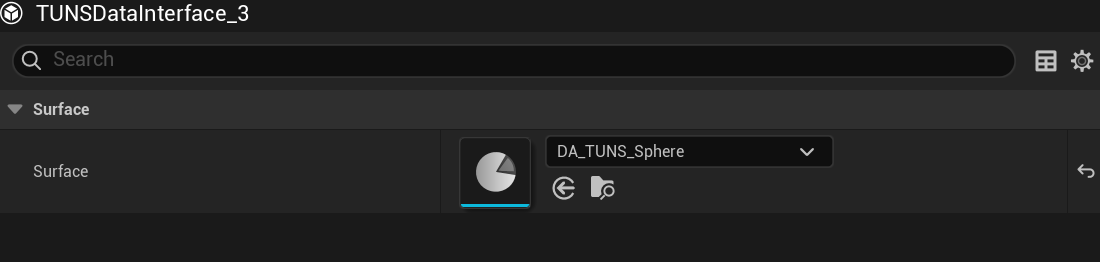
- Surface
Choose the baked Data Asset, not the source mesh or mask texture.
2. Bind and reuse it
- Select the TUNS sampling module. Open the binding menu beside SamplingData and select
User.BakedSurface. - Compile and save. For a different actor using the same system, select its Niagara component and assign a compatible bake in its user-parameter overrides.
BakedSurface is your chosen name. The SamplingData binding must match it. The supplied examples already define this parameter.
Updated Oct 4, 2026