
Map your world
Map textures, render targets, or painted/auto captured heightfields to your world bounds for spatially controlled logic zones such as temperatures, healing, damage, safe zones and the sort.
1. Place the area
Add Pixel Era Play Area. Choose XY or YZ and Field Size / cm. Move the plane to your minimum depth, then click New Asset.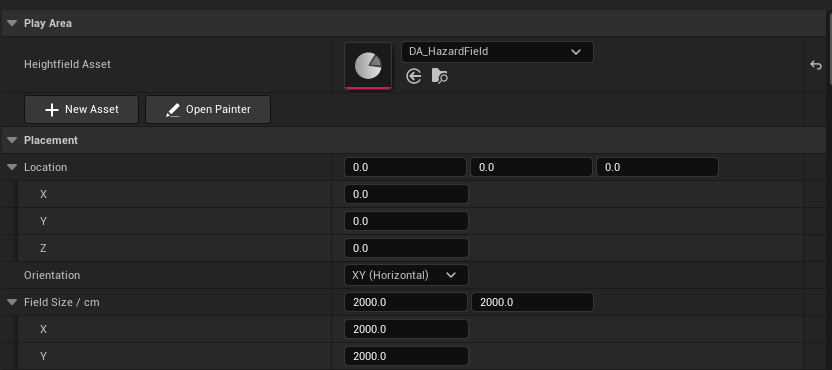
- Create the assetNew Asset creates and assigns the field asset.
- Choose XY or YZField Size sets the footprint in centimetres.
2. Choose the source
Open the Heightfield Asset and name its row Hazard. Choose Texture and assign Map, or Render Target and assign its input. For painted volumes without a color map, choose Heightfield Only. Prepare Texture2D sources as shown in Read a texture.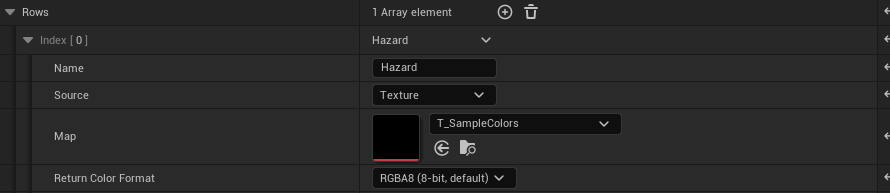
- Choose the sourceAssign the matching texture or render target input below.
3. Set depth limits if needed
For textures or render targets, Depth Routing links color channels to heightfield channels. Leave None for a flat map. Capture or paint any depth channel you use. Heightfield Only returns 1 inside enabled intervals, 0 outside.
- Choose a depth channelSeveral source channels can share the same painted depth. None leaves that channel ungated.
4. Add the receiver
Add PixelEra_WorldMapper to your actor. It finds the Play Areas automatically. Use World Offset to move the sampling point.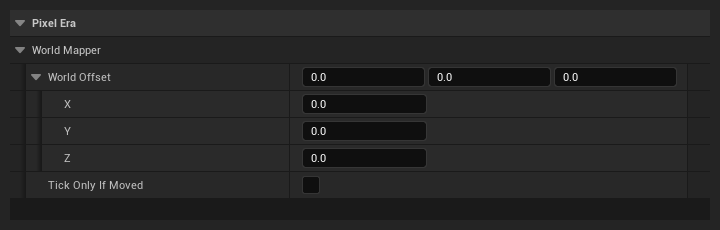
- Sampling offsetRelative to the actor location.
- Tick Only If MovedEnable for static fields. Leave off to react to animated fields while stationary.
5. Handle horizontal results
Select WorldMapper. Under Events, click + for On XY Pixel Color Updated. Connect Row to Switch on Name, add Hazard, and use Color.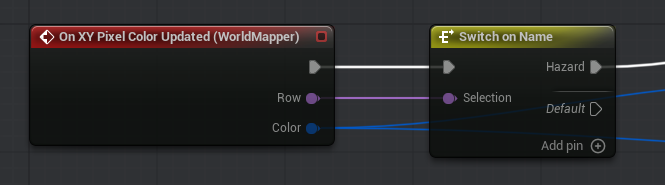
- Horizontal eventAdd Hazard to Switch on Name.
For vertical areas
Use On YZ Pixel Color Updated instead.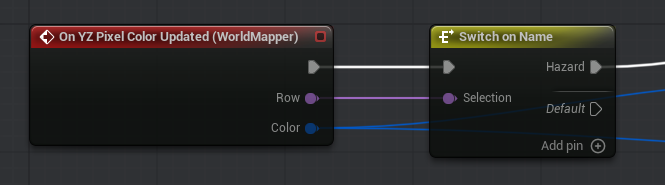
- Vertical eventUse the YZ event for vertical areas.
Updated Oct 17, 2026