
Quick setup for Skeletal Meshes
Set up Particle Spawn for animated placement and Particle Update for particles that stay attached.
Use TUNS_SampleSkeletalMesh in Particle Spawn to place new particles on the current animated pose. Add the same module in Particle Update when they should stay attached. No custom scratch module or extra bool is needed.
1. Bake the skeletal mesh
- In the Content Browser, right-click → Miscellaneous → Data Asset → TUNS Surface Bake. Name it
DA_TUNS_Character. - Open the asset. Set Mesh to the exact skeletal mesh used by your character. Leave Mask Texture empty for the whole surface; use UV Channel = 0.
- For this setup:
Sample Bank Size = 1,024
Relaxation Iterations = 64
Integration Samples Per Point = 32.
Click TUNS Bake, confirm Ready, and save.
2. Prepare a Niagara emitter
- Create a Niagara System with one standard emitter. In Emitter Properties, set Sim Target = GPUCompute Sim, enable Local Space, and use Fixed Bounds large enough to contain the animated character.
- Under Emitter Update, add Spawn Burst Instantaneous with Spawn Count = 1,024. Keep Initialize Particle in Particle Spawn, Particle State in Particle Update, and a Sprite Renderer. For testing, use a lifetime of 30 seconds and a small sprite size.
- In User Parameters, add a parameter of type TUNS Baked Surface (GPU) named
BakedSurface. Expand it and set Surface toDA_TUNS_Character.
3. Particle Spawn – spawn from surface point
- Click + beside Particle Spawn and add
TUNS_SampleSkeletalMesh. Place it after Initialize Particle. It appears in the stack as TUNS Sample Skeletal Mesh. - Set SamplingData to
User.BakedSurface. Start with Seed = 0 and NormalOffset = 0.25. - Set Mesh to TUNS Skeletal Mesh (GPU). Expand its settings: Source Mode = Attach Parent, Preview Mesh = your baked skeletal mesh, and Whole Mesh LOD = 0.
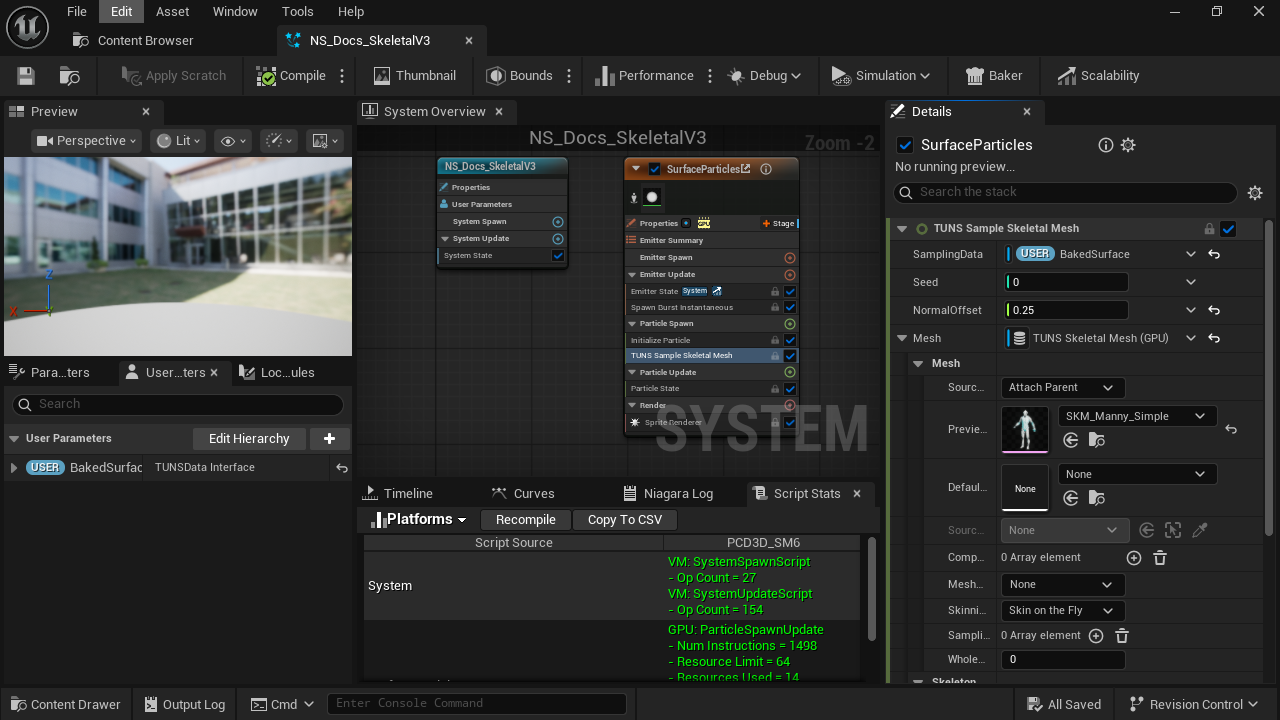
- Spawn sampler
Place this below Initialize Particle. It writes the particle’s initial position.
- SamplingData
Bind User.BakedSurface, with Surface set to your skeletal bake.
- Mesh input
Use TUNS Skeletal Mesh (GPU), then expand its source settings.
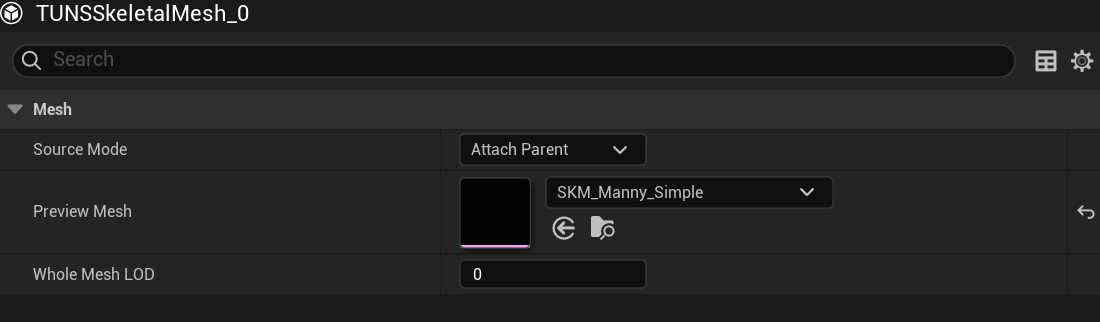
- Attach Parent
Read the animated Skeletal Mesh Component that owns the Niagara component.
- Preview Mesh
Choose the exact skeletal mesh baked in step 1.
- Whole Mesh LOD
Keep 0 so the runtime triangle indices match the bake.
4. Particle Update: Follow the surface after spawning
- For an attached effect, keep the Spawn copy. Click + beside Particle Update and add
TUNS_SampleSkeletalMeshagain. - Match the Spawn copy’s SamplingData, Mesh source, Preview Mesh, Whole Mesh LOD, Seed and NormalOffset. Use
User.BakedSurfacein both copies and keep Seed constant. - Place the Update copy after Particle State and after any modules that change position. For this simple attached effect, no forces or velocity solver are needed. Compile and save.
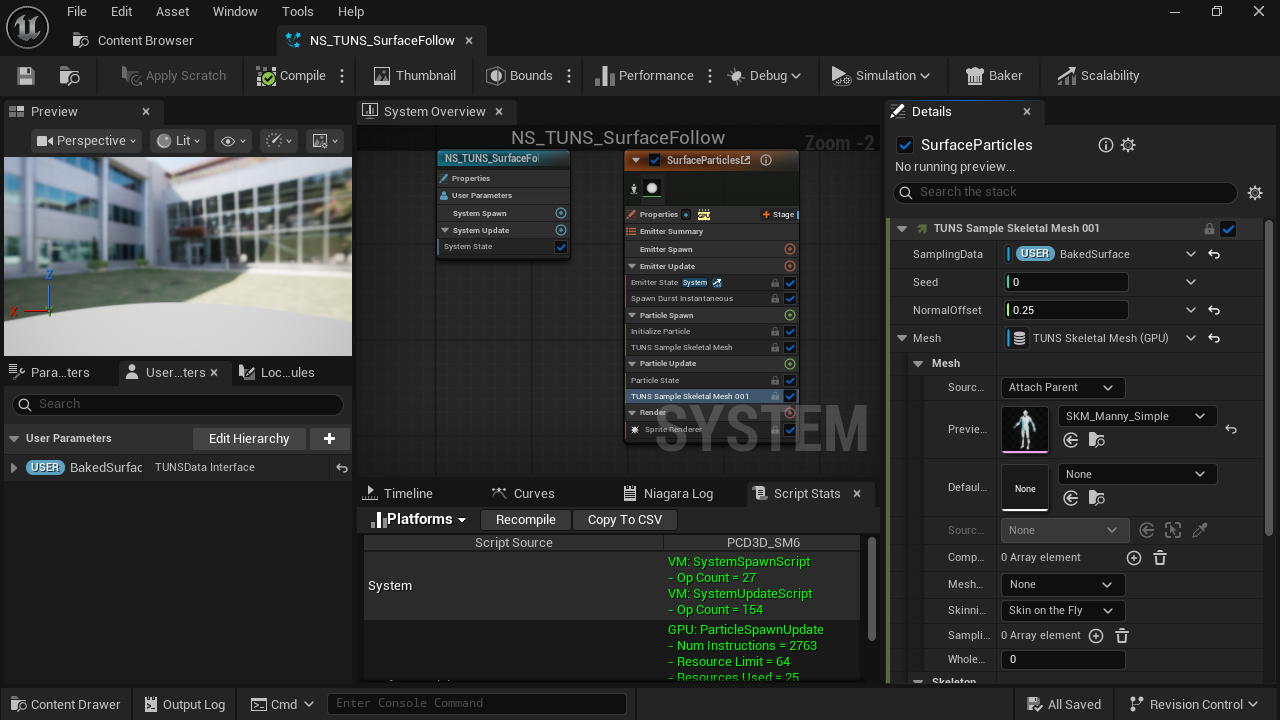
- Keep the Spawn copy
Gives the particle a valid surface position on its first frame.
- Add the Update copy
Re-evaluates the same sample on the animated surface each frame.
- Share the same bake
Both SamplingData inputs use User.BakedSurface.
- Match the source
Use the same Attach Parent source, matching mesh and LOD 0 in both copies.
5. Attach it to the animated character
- Open the character or actor Blueprint. Add a Niagara Component, assign your Niagara System, and drag the component beneath the matching Skeletal Mesh Component in the Components tree.
- Reset the Niagara component’s relative location and rotation to 0, and scale to 1. Play an animation on the Skeletal Mesh Component, then compile, save and test Play.
- With Spawn + Update, the same particles should stay on the animated surface. Disable the Update copy to compare: particles keep their last sampled positions and are no longer refreshed with the changing pose. Restart the effect to test its spawn behavior again.
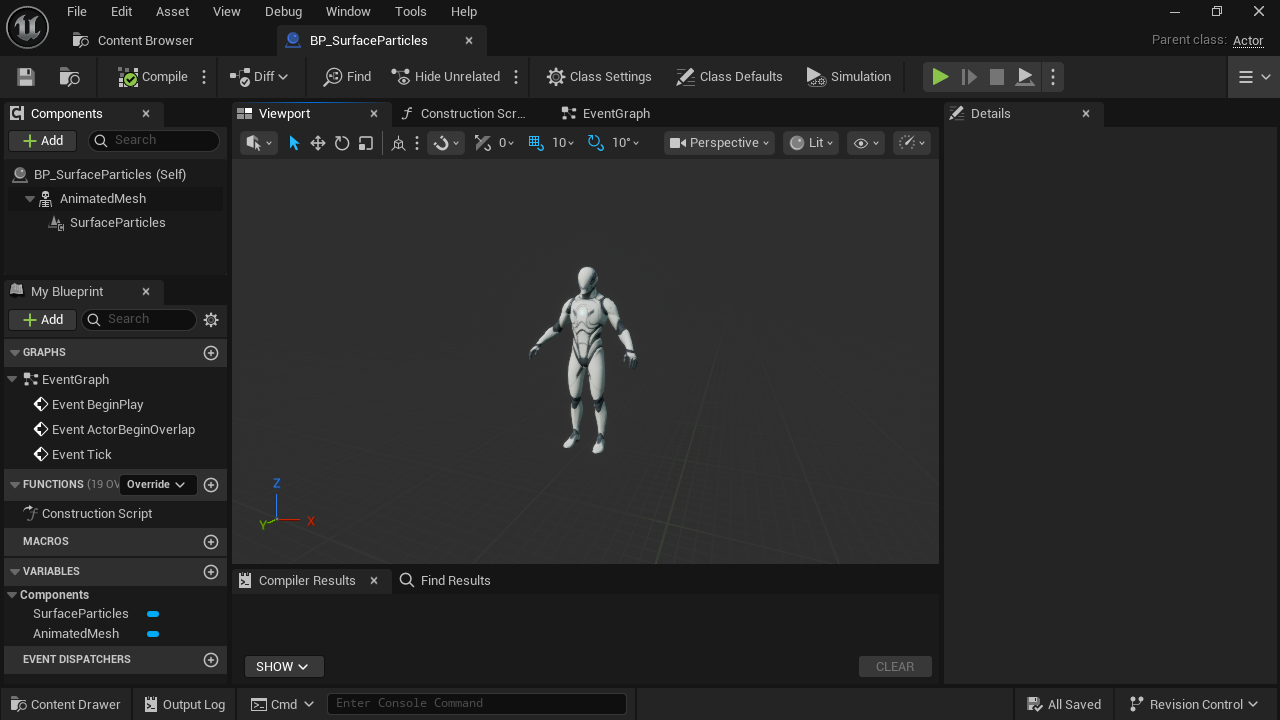
- Skeletal Mesh Component
Assign the mesh that matches the bake and play its animation.
- Niagara child
Attach the effect here so Attach Parent finds the animated mesh.