
Inspect the preview
Inspect all points and compare sampling distributions.
- Click Frame Mesh. Use Alt + left drag to orbit, middle drag to pan and the wheel to zoom.
- Enable Points. X-ray shows points behind the surface.
- Set the preview limit beside X-ray to 65,536 to inspect an entire bank of that size.
- Under Preview, choose Opaque Black or Translucent if the supplied mesh material hides points.
- Adjust Point Surface Offset only to make preview dots easier to see.
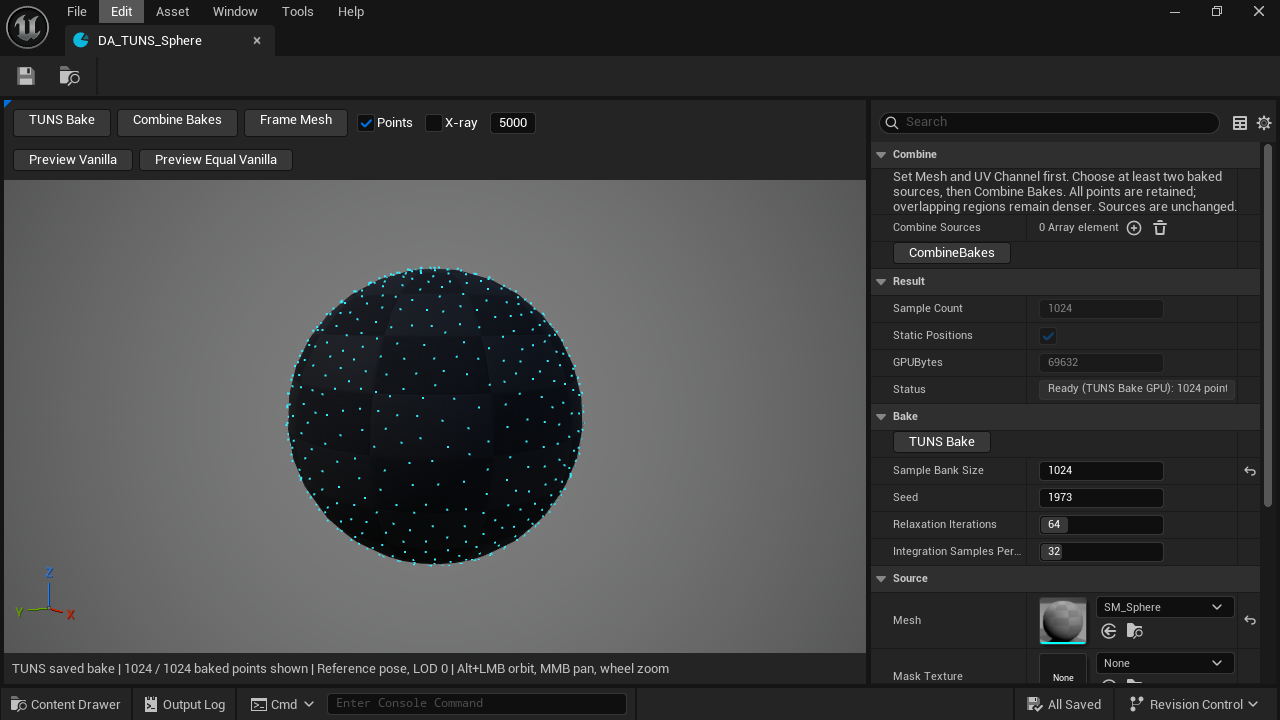
- Frame Mesh
Fit the mesh in view.
- Points
Show or hide dots.
- X-ray
See points through the surface.
- Preview limit
Set this to the bank count to display every point.
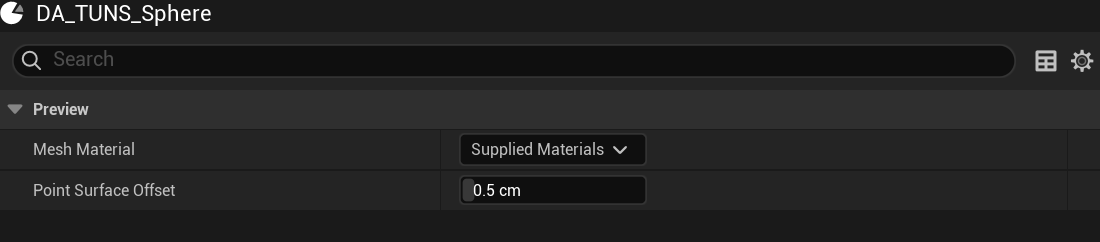
- Mesh Material
Supplied, opaque black or translucent.
- Point Surface Offset
Use Niagara’s NormalOffset for the actual effect.
Preview Vanilla shows random triangle sampling. Preview Equal Vanilla shows surface-area-weighted random sampling. Both apply mask rejection; neither applies spacing relaxation. Click the active button again to return to TUNS.
Updated Oct 4, 2026